
In some Maximo 7.6 installations, opening the properties of an Image Control in Application Designer fails with:
BMXAA7136E - Validation failed when the database default values were set.
See the associated message for more information.

BMXAA4190E - Align Image RIGHT is not in the value list.

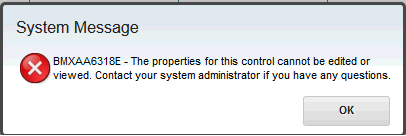
BMXAA6318E - The properties for this control cannot be edited or viewed.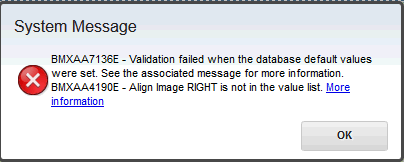
The properties dialog then remains unavailable:
Why it happens
The non-persistent CTRL_IMAGE.ALIGN attribute is defined with the uppercase default value RIGHT. Its ALIGN domain contains lowercase values such as left, center and right. If the attribute's Max Type does not normalize the default to lowercase, Maximo rejects RIGHT when it creates the control-properties record.
Confirm the mismatch before changing anything:
SELECT
  OBJECTNAME,
  ATTRIBUTENAME,
  MAXTYPE,
  DEFAULTVALUE,
  DOMAINID
FROM
  MAXATTRIBUTE
WHERE
  OBJECTNAME = 'CTRL_IMAGE'
  AND ATTRIBUTENAME = 'ALIGN';
Check the configuration copy as well:
SELECT
  OBJECTNAME,
  ATTRIBUTENAME,
  MAXTYPE,
  DEFAULTVALUE,
  DOMAINID
FROM
  MAXATTRIBUTECFG
WHERE
  OBJECTNAME = 'CTRL_IMAGE'
  AND ATTRIBUTENAME = 'ALIGN';
Only continue when both queries identify the expected CTRL_IMAGE.ALIGN metadata and the ALIGN domain contains the lowercase right value. A BMXAA7136E message by itself is generic and can have unrelated causes.
Correct the attribute metadata
Take a database backup or a tested backup of the affected rows, stop Maximo application servers and run the change through your normal controlled database process. The two metadata tables must agree:
--Update MAXATTRIBUTE to a Max Type of LOWER and default value of 'right'
UPDATE
  MAXATTRIBUTE
SET
  MAXTYPE = 'LOWER',
  DEFAULTVALUE = 'right'
WHERE
  OBJECTNAME = 'CTRL_IMAGE'
  AND ATTRIBUTENAME = 'ALIGN';

--Update MAXATTRIBUTECFG to a Max Type of LOWER and default value of 'right'
UPDATE
  MAXATTRIBUTECFG
SET
  MAXTYPE = 'LOWER',
  DEFAULTVALUE = 'right'
WHERE
  OBJECTNAME = 'CTRL_IMAGE'
  AND ATTRIBUTENAME = 'ALIGN';
Each statement should update exactly one row. Stop and investigate if either statement updates zero rows or more than one row. Commit the transaction using the process appropriate for your database platform, then rerun both diagnostic queries and confirm that MAXTYPE is LOWER and DEFAULTVALUE is right in both tables.
Restart Maximo so its metadata caches are rebuilt. In a cluster, restart every application server that can serve Application Designer rather than testing against a mixture of old and new cached metadata.
Verify the fix
Open System Configuration > Platform Configuration > Application Designer, select an application containing an Image Control and open the control's properties. The dialog should open without any of the three errors, and Align Image should accept Left, Center and Right.
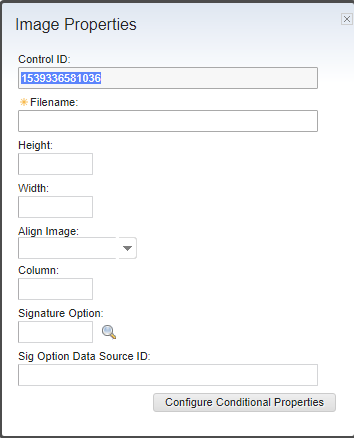
Test an existing image and a newly added Image Control, save the application, sign out and open it in a fresh session. If the error remains, recheck the metadata on the same database used by the running JVM and confirm that every cluster member was restarted.