
By default, the case of a Maximo login ID matters. If TestUser is stored in MAXUSER.LOGINID, entering testuser or TESTUSER can fail even when the password is correct.
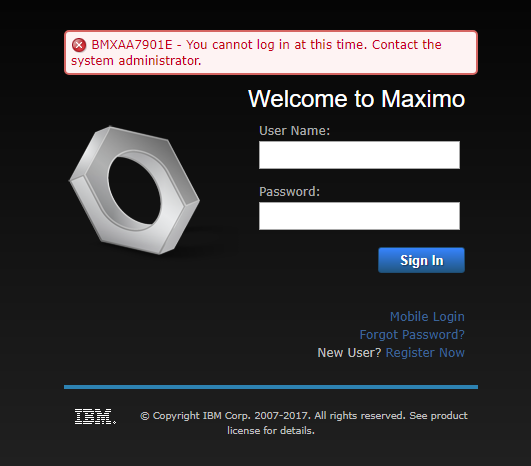
The mxe.convertloginid system property can make login entry more forgiving. When its value is 1, Maximo converts the submitted login ID to uppercase before validating it. For that to work reliably, the login IDs Maximo compares against must also follow the uppercase convention.
Before you begin: this change affects authentication for every user and requires a database configuration change. Back up the database, test the full login flow outside production and keep a separate administrator session available until validation is complete.
Understand what the property changes
mxe.convertloginid changes the value presented to Maximo for validation. It does not automatically rename existing users, convert accounts in LDAP or another identity provider, or repair mismatched synchronized records.
This distinction matters for application-server security. The identity provider authenticates the user first, then Maximo matches the resulting principal to MAXUSER.LOGINID for authorisation. IBM's authentication troubleshooting guidance notes that this comparison is case-sensitive and must find an active Maximo user.
Before making the change, confirm whether the environment uses native Maximo authentication, LDAP, SAML or another application-server security mechanism. For external authentication, coordinate the casing convention with the directory and user-synchronisation configuration.
Audit the existing login IDs
First find values that are not already uppercase:
SELECT
  USERID,
  LOGINID
FROM
  MAXUSER
WHERE
  LOGINID IS NOT NULL
  AND LOGINID <> UPPER(LOGINID)
ORDER BY
  LOGINID;
Then check whether normalising case would create duplicates:
SELECT
  UPPER(LOGINID) AS NORMALISED_LOGINID,
  COUNT(*) AS MATCHING_USERS
FROM
  MAXUSER
WHERE
  LOGINID IS NOT NULL
GROUP BY
  UPPER(LOGINID)
HAVING
  COUNT(*) > 1
ORDER BY
  NORMALISED_LOGINID;
Resolve every collision before continuing. For example, TESTUSER and TestUser cannot both remain distinct after all login IDs are normalised to uppercase.
Use Maximo's supported user-management or directory-synchronisation process to correct existing records. Do not run an unreviewed direct UPDATE against MAXUSER; authentication data can be tied to external identities and other security records.
Change MAXUSER.LOGINID to UPPER
Open System Configuration → Platform Configuration → Database Configuration, find the MAXUSER object and open its Attributes tab.
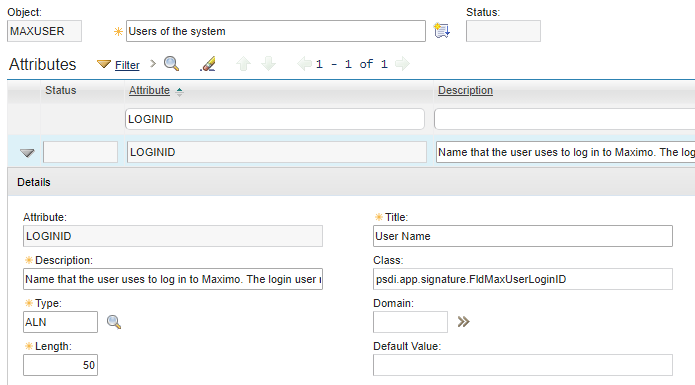
Find LOGINID, change its type from ALN to UPPER, and save the record.
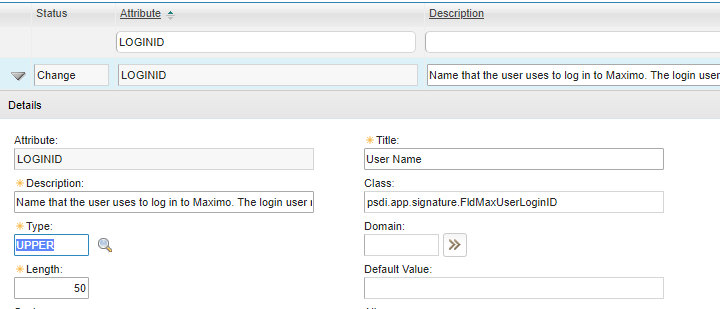
The UPPER data type means lowercase characters entered through Maximo are converted to uppercase. IBM's attribute data-type reference distinguishes this from the mixed-case ALN type.
Turn on Admin Mode and configure the database using the normal process for your environment. Database Configuration changes do not take effect until this step completes.
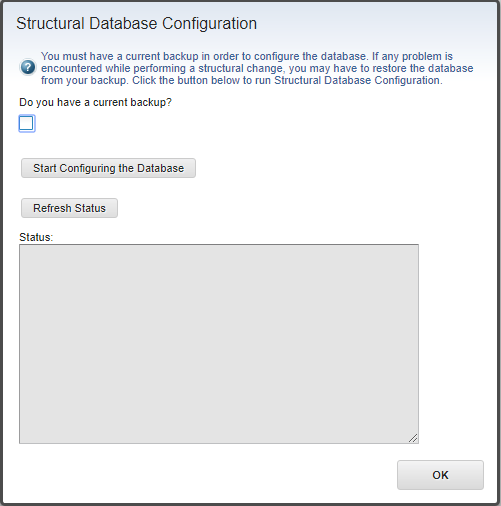
Turn Admin Mode off after configuration completes. Rerun the audit queries and confirm that every active user's LOGINID matches the uppercase identity Maximo will validate. Do not assume the metadata change corrected every existing value.
Enable mxe.convertloginid
Open System Configuration → Platform Configuration → System Properties and find mxe.convertloginid. Change its Global Value to 1 and save.
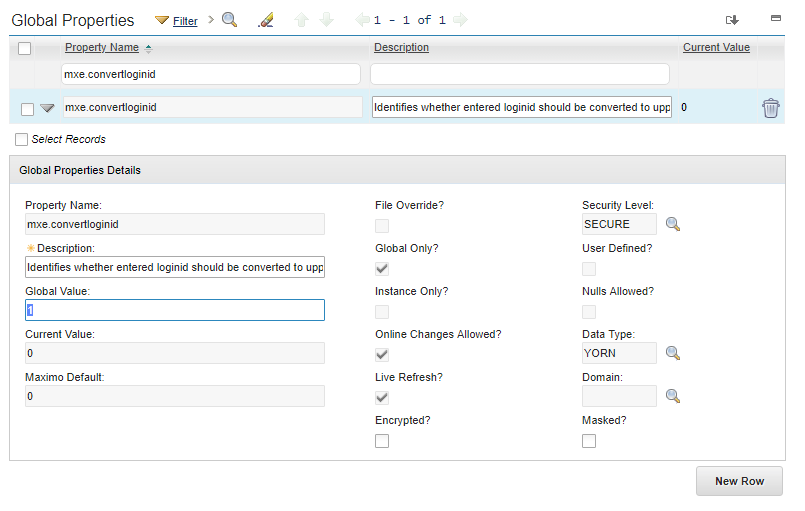
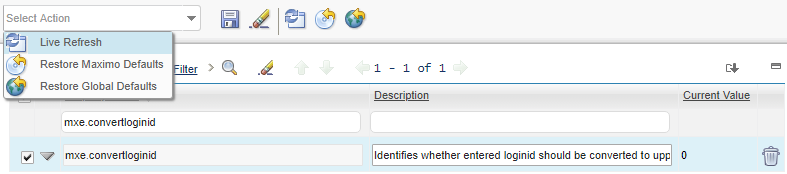
Select the property and choose Live Refresh from the actions menu.
Confirm that its Current Value is now 1. IBM documents 0 as no conversion and 1 as converting the submitted login ID to uppercase before validation in its server-property reference.
Test every authentication path
Sign out and try the same known account in uppercase, lowercase and mixed case.
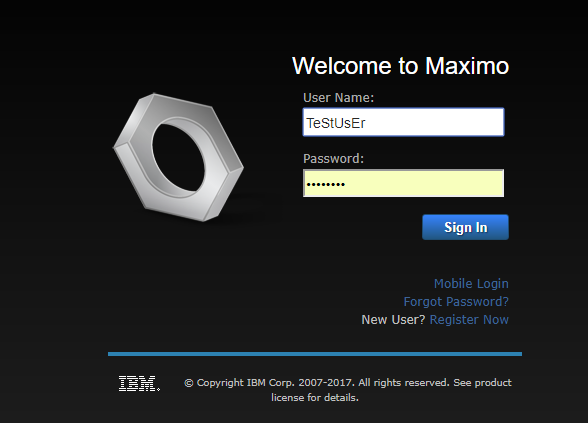
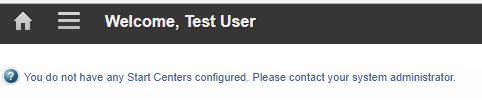
Do not stop after testing the browser login. Check every authentication path used by the environment:
- native login and password changes;
- LDAP, SAML or other application-server authentication;
- electronic signatures;
- REST, integration and reporting accounts;
- scheduled jobs or scripts that submit a login ID; and
- creation and synchronisation of new users.
Historical Maximo releases had defects involving password changes and electronic signatures when mxe.convertloginid was enabled. Confirm that the relevant maintenance is installed for the version you run, and test those flows even if the normal login succeeds.
If validation fails, restore the previous property value and metadata through the supported configuration process, then investigate the stored LOGINID, external principal and synchronisation mapping before trying again.