
Maximo can run the selected report but omit its attachments and show this warning:
BMXAA5301I - There are no attached printable documents for the report. Do you want to continue printing the report?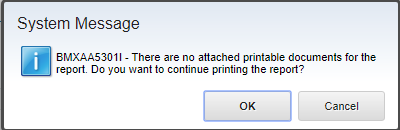
The message does not necessarily mean that the record has no attachments. It means Maximo did not find an attachment that qualified for this print operation. Work through the eligibility and retrieval checks before changing system properties.
Confirm that the document is printable
Open the record's attachments and check the document that should print:
- The attachment still exists and opens successfully.
- Its document type and file type are supported by the target printing environment.
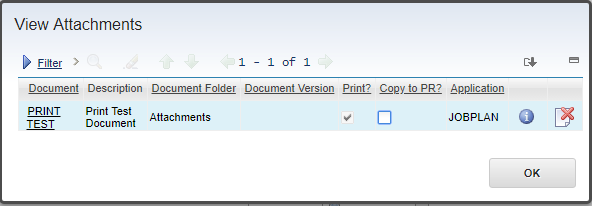
- Print document with report is selected.
- The attachment belongs to the current record, or inherited attachments are enabled.
- The report is configured for Print with Attachments and has a print-with-attachments location.
This example uses a text file attached to the work order's job plan. It is marked for printing in the report dialog:
Opening a document in your browser proves that the browser can retrieve it with your user session. It does not prove that the Maximo server can retrieve the same URL during report processing.
Enable inherited attachments when required
An attachment shown on a work order can belong to a related asset, location, job plan or another record. Maximo treats it as an inherited attachment rather than one attached directly to the work order.
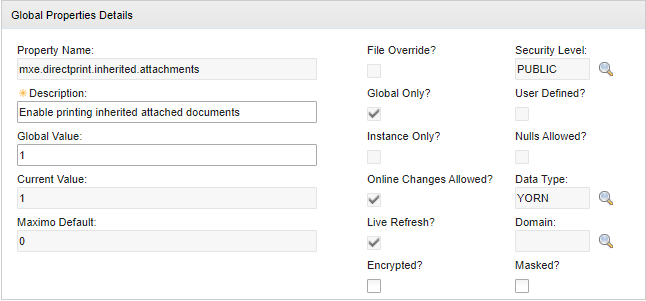
In System Properties, find:
mxe.directprint.inherited.attachmentsSet it to 1 when direct print with attachments must include inherited documents, save the property and apply Live Refresh if the property permits it. Otherwise, restart the affected Maximo server or Manage server bundle through the normal change process.
Retest with two known documents: one attached directly to the work order and one inherited from its related record. That separates attachment inheritance from general printing problems.
Maximo Asset Management 7.6.1.0 had a defect where this property did not control the toolbar action correctly. IBM fixed APAR IJ20642 in 7.6.1.3, so check the installed fix pack if the property appears to have no effect.
Set URL validation correctly for Manage
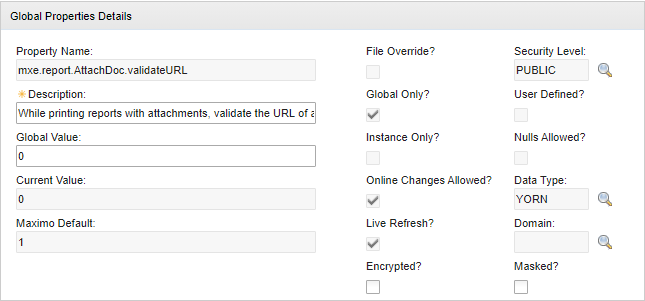
The property below determines whether Maximo validates an attachment URL before printing it:
mxe.report.AttachDoc.validateURLFor current Maximo Manage, IBM documents that this property should be set to 0. Save and refresh or restart it as required by the property definition:
Do not assume the value from one product generation applies to another. For a traditional Maximo Asset Management 7.6 deployment, check its report-administration guide and current fix level before changing the property. Record the original value so the change can be rolled back.
Disabling validation only removes the preliminary URL check. The report process must still be able to retrieve and handle the document.
Test access from the Maximo runtime
If URL validation remains enabled, or attachments still fail with it disabled, test from the same network context as the Maximo JVM or Manage server bundle. Check:
- DNS resolves the document host to the expected address.
- The route and firewall allow the required port.
- A proxy is configured for the server process if one is required.
- The URL uses a hostname covered by its TLS certificate.
- The runtime trusts the complete issuing certificate chain.
- Authentication, redirects and reverse-proxy rules work without relying on the browser's existing session.
For traditional WebSphere deployments, an HTTPS signer might need to be added to the trust store actually used by the Maximo JVM. Follow Fix CWPKI0022E and CWPKI0428I SSL handshake failures and verify the certificate fingerprint before importing it.
Review the application-server or Manage pod logs at the time of the failed print. Look for DNS errors, connection timeouts, refused connections, HTTP status codes, redirect loops, TLS handshake failures and unsupported content types. These errors identify the failed layer without attaching an IDE debugger to production.
Verify the fix
Use a small test matrix so a successful report does not hide an attachment-specific failure:
| Test | Expected result |
|---|---|
| Report without attachments | Report prints normally |
| Directly attached printable document | Report and document are included |
| Inherited printable document | Included only when inheritance is on |
| Attachment not marked for report printing | Excluded |
| Unsupported document type | Rejected or excluded as documented |
| HTTPS attachment | Retrieved without DNS or TLS log errors |
Repeat the test through the same toolbar action and report configuration used by ordinary users. If the environment is clustered, test every JVM or server bundle that can process the request.