
A Maximo publish channel or other outbound integration can fail when WebSphere does not trust the certificate presented by an HTTPS endpoint. SystemOut.log commonly contains messages like these:
CWPKI0022E: SSL HANDSHAKE FAILURE
CWPKI0428I: The signer might need to be added to the local trust store.
Message Tracking may show the failure through the Maximo HTTP handler:
BMXAA1477E - The connection failed to the HTTP handler for the endpoint.
PKIX path building failed: CertPathBuilderException
Certificate chaining error
These messages usually mean the trust store cannot build a valid chain from the remote certificate to a trusted signer. They can also appear alongside an expired certificate, an incomplete chain, a hostname mismatch or another TLS configuration problem. Confirm the endpoint and inspect the full exception before importing anything.
Verify the certificate before trusting it. “Retrieve from port” imports what the remote host presents at that moment. Confirm the subject, issuer, validity dates and SHA fingerprint with the endpoint owner through a separate trusted channel. Importing an unverified signer can make a man-in-the-middle certificate trusted by Maximo.
Identify the SSL configuration
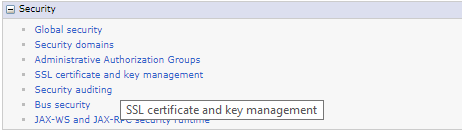
Sign in to the WebSphere Integrated Solutions Console and open Security → SSL certificate and key management.
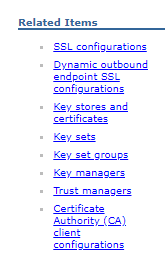
Under Related Items, open SSL configurations.
Open the configuration used by the application server making the outbound call and note its Trust store name. SSL configurations inherit by management scope, and an endpoint can use an explicit outbound configuration, so do not assume every server uses the same store.
In this network-deployment example, the application server used CellDefaultTrustStore.
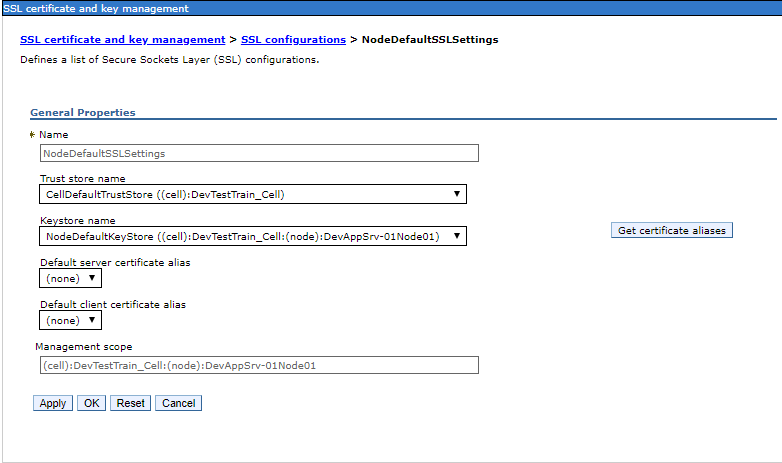
A standalone profile commonly uses NodeDefaultTrustStore, while a network deployment commonly uses CellDefaultTrustStore. The configuration assigned to the actual outbound connection is the deciding value.
Open the signer certificates
Return to SSL certificate and key management, open Key stores and certificates, and select the trust store identified above.
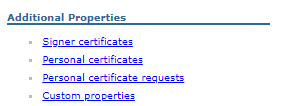
Under Additional Properties, open Signer certificates.
Select Retrieve from port.
Retrieve and verify the signer
Enter:
- Host: the DNS name Maximo uses for the HTTPS endpoint.
- Port: the endpoint's TLS port, commonly
443. - Alias: a unique, meaningful name for this signer.
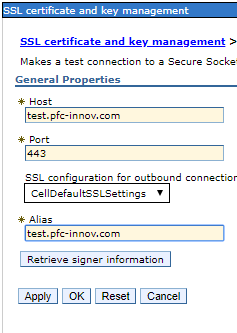
Choose Retrieve signer information. WebSphere displays the certificate returned by the endpoint.
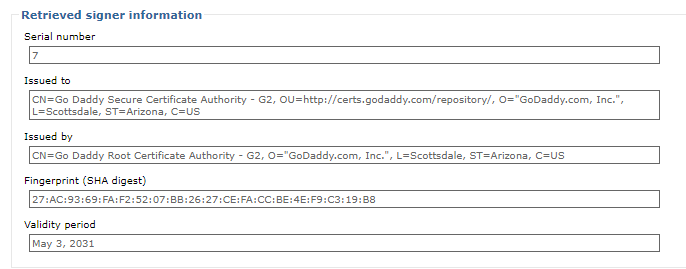
Before applying the change, verify:
- The subject or subject alternative names cover the endpoint hostname.
- The certificate is within its validity period.
- The issuer is the expected certificate authority.
- The fingerprint matches the value supplied by the endpoint owner.
If the server sends an incomplete chain, correct the server configuration where possible. Trusting the approved root or intermediate CA is usually easier to maintain across normal leaf-certificate renewals than importing one short-lived leaf certificate.
When the identity is confirmed, apply the signer and save the change to the master configuration.
Synchronize and test
In a network deployment, synchronize the affected nodes. Restart the affected Maximo application server or cluster members during a planned window so every process reloads the trust configuration.
Retry the publish channel or endpoint operation and confirm that:
- Message Tracking no longer reports
BMXAA1477Efor the TLS connection. SystemOut.logno longer reportsCWPKI0022EorCWPKI0428Ifor that endpoint.- The request reaches the intended remote service and receives the expected response.
If the error remains, confirm that you updated the trust store used by the failing JVM and the relevant outbound SSL configuration. Also check the remote chain, hostname, enabled TLS protocols and cipher suites. Do not work around certificate validation by disabling hostname or trust checks.