
Traditional Maximo times an inactive browser session out after 30 minutes by default. That can feel too short for users who spend a long time reading or working away from the browser, but increasing it also keeps abandoned sessions and their server resources alive for longer.
Choose a value with your security, usability and licensing teams rather than treating the longest possible session as the best user experience. A shorter timeout reduces the window in which an unattended authenticated browser can be misused; a longer timeout reduces interruptions and the risk of unsaved work being lost.
The setting is different in traditional Maximo Asset Management and Maximo Application Suite.
Traditional Maximo: back up web.xml
The browser's HTTP session timeout is defined in:
<MAXIMO_ROOT>\applications\maximo\maximouiweb\webmodule\WEB-INF\web.xmlThe example environment kept a copy called web.xml.orig beside the file:
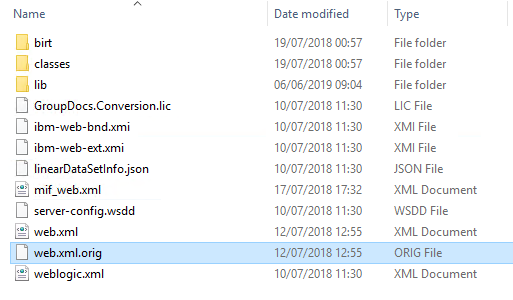
Keep your rollback copy outside the application build tree so it cannot be packaged accidentally. Record the current value and protect the backup with the same access controls as the Maximo source.
Change the inactivity period
Open web.xml and find the session-config block:
<session-config>
  <!-- The session-timeout element defines the default session timeout
       interval for all sessions created in this web application. The
       specified timeout must be expressed in a whole number of minutes. -->
  <session-timeout>30</session-timeout>
</session-config>
The value is the inactivity period in whole minutes. For example, use 20 for a twenty-minute timeout or 60 for one hour:
<session-config>
  <session-timeout>60</session-timeout>
</session-config>
IBM warns that a higher value retains sessions for longer and consumes more memory. Review the number of concurrent users and JVM capacity before increasing it substantially.
Although -1 disables automatic HTTP-session expiry, an indefinitely reusable interactive session is a poor production security control and can retain server and licence resources after a user walks away. Use a finite timeout and require users to authenticate again.
Align the timeout warning
Traditional Maximo can warn a user before the session expires. The sessiontimeoutwarningtime setting in webclient.properties controls how many minutes before expiry the warning appears.
For a 30-minute session with a five-minute warning:
sessiontimeoutwarningtime=5Set the warning interval below the session timeout. A value of 0 disables the warning, which makes it easier for a user to lose unsaved work when the session expires.
Do not confuse the user-monitor properties
The following system properties have related names but do not determine when the browser displays a session timeout:
mxe.usermonitor.timeoutcontrols when the server clears session information from its cache.mxe.usermonitor.InactiveSessionTimeLimitcontrols how long an inactive session remains inMAXSESSION.
The session-timeout value in maximouiweb's web.xml controls the traditional user-interface HTTP session. Review the user-monitor properties when diagnosing stale session records or cache behaviour, but do not change them as a substitute for the web application setting.
Other layers can still end authentication earlier. Check WebSphere or WebLogic session settings, LTPA or identity-provider token lifetime, SSO policy, proxies and load balancers. The effective user experience is governed by whichever relevant limit expires first.
Rebuild and deploy Maximo
After editing web.xml or webclient.properties:
- Validate the XML and review the exact diff.
- Rebuild
maximo.earfrom the maintained Maximo source tree. - Back up the deployed application and configuration.
- Redeploy the EAR through the normal application-server process.
- Restart or roll the Maximo JVMs according to the cluster procedure.
- Test with a new browser session on every relevant cluster member.
Do not edit only an expanded application-server copy. A later deployment can overwrite it, and other cluster members will continue using different settings.
Test both sides of the boundary: remain inactive until the warning appears, continue the session and confirm the timer resets; then repeat without continuing and confirm that Maximo logs the user out cleanly. Also test SSO reauthentication, unsaved-record behaviour and licence release.
Maximo Application Suite
For Maximo Application Suite, configure the suite idle timeout instead of editing a file inside a running Manage pod:
- Open the AppPoints Usage Dashboard from Suite administration.
- Open the Configuration tab.
- Find Idle timeout in the details section.
- Enable idle timeout and enter the permitted inactivity period.
- Save the configuration.
IBM documents a default of 30 minutes. The new value applies immediately to new sessions, while existing sessions retain the previous value until refreshed. When an idle session is logged out, its AppPoints are returned to the available pool.
Manage can also be affected by authentication-token lifetime. IBM notes that an LTPA expiry can force a reload even during active use, so investigate token configuration when users are interrupted before the configured idle period. Do not extend every timeout blindly: decide whether the requirement is idle-session behaviour, absolute token lifetime or both.
Choose and monitor the value
After deployment, monitor:
- complaints about premature logout or lost unsaved work;
- active session and JVM memory levels;
- licence or AppPoint release after inactivity;
- sessions that remain in
MAXSESSIONunexpectedly; - SSO redirects and token-expiry events; and
- different behaviour between cluster members.
Tell users what inactivity means in the interface. Automatic refreshes, dashboards or background requests can keep an HTTP session active even when nobody is at the keyboard, so validate the timeout against the applications your users actually leave open.