
Renaming a Windows server that hosts DB2 leaves the instance configuration, Windows security groups and every client that uses the old hostname to deal with. The database files have not moved, but DB2 still needs to know the new TCP/IP hostname before the instance can start normally.
This procedure updates a DB2 database partition on the same renamed Windows computer. It does not move a partition or database to another server.
Plan this as an outage. Take a tested database backup and a system-state or VM backup, record the DB2 instances and service accounts, stop Maximo cleanly, and make sure you can restore the original hostname. Coordinate DNS, certificates, monitoring, backups and every JDBC or catalogued client that refers to the old name.
Record the current configuration
Before changing Windows, open an elevated DB2 command window and record the instances installed in this DB2 copy:
db2ilistFor each instance, locate its db2nodes.cfg file and save a backup copy for reference. On Windows, the instance directory is controlled by DB2INSTPROF and commonly sits below a path such as:
C:\ProgramData\IBM\DB2\DB2COPY1\CTGINST1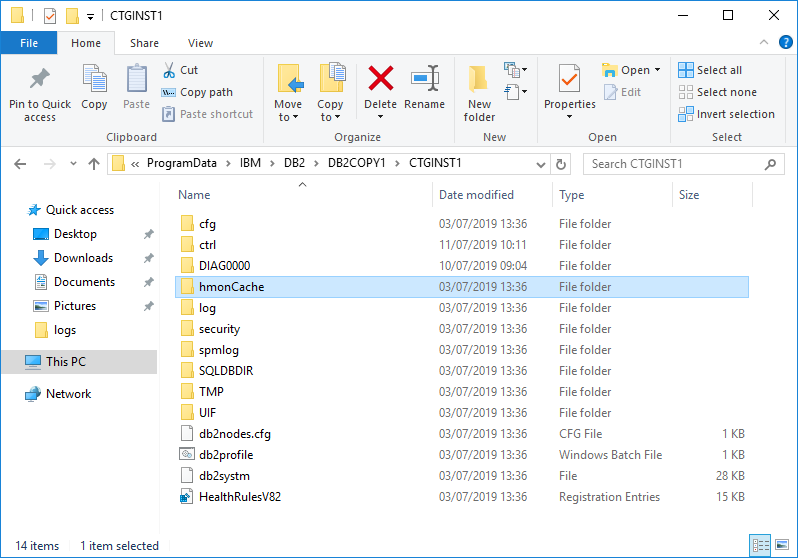
This single-partition example contained a row like this:
0 OldName.example.com OLDNAME 0The columns on Windows include the database partition number, TCP/IP hostname, computer name and logical port. Use the file to identify the configured partition numbers. Do not edit it in a text editor. IBM requires Windows entries to be changed with db2nchg.
Also record whether the DB2 administration and user groups are local or domain groups. The installation defaults are DB2ADMNS and DB2USERS, but an environment can use different names.
Stop the application and DB2
Stop Maximo, integrations and scheduled jobs before stopping DB2. Confirm that the database has no active application connections, then stop each affected instance through the normal DB2 service or command procedure.
db2nchg can run only while the target database partition server is stopped. If the host has several DB2 instances, plan the command and validation separately for each one.
Rename Windows and confirm name resolution
Rename the Windows computer using the approved operating-system procedure and restart it. Update DNS and allow the new name to resolve correctly in both directions before changing DB2.
From the renamed server, confirm the names and addresses Windows returns:
hostname
nslookup NewName.example.com
ping NewName.example.com
Use the canonical hostname adopted by your environment. IBM recommends a fully qualified hostname in db2nodes.cfg; inconsistent short and fully qualified names can cause resolution delays or make a local partition appear remote.
Change the DB2 partition hostname
Open a command prompt as a local administrator and load the command environment for the correct DB2 copy. For the example instance CTGINST1, partition 0, the supported change is:
db2nchg /n:0 /i:CTGINST1 /h:NewName.example.comThe arguments are:
/n:0selects database partition0;/i:CTGINST1selects the instance; and/h:NewName.example.comsets the TCP/IP hostname used for DB2 communications.
Repeat the operation for every configured partition that used the old hostname and for every affected instance. Do not add /m merely because Windows was renamed: that option moves a database partition to a different computer and has additional restrictions, including that the instance cannot already contain databases.
After the command succeeds, inspect db2nodes.cfg to confirm the new value. Treat the file as verification output, not as the editing interface.
Update Windows extended-security groups
When DB2ADMNS and DB2USERS are local computer groups, their qualified names change with the Windows computer name. IBM's current procedure is to apply the new qualified group names directly:
db2extsec /a NewName\DB2ADMNS /u NewName\DB2USERSSubstitute the actual local group names. If the installation uses domain groups, preserve those domain-qualified names instead. IBM requires the administration and user groups to be the same type: both local or both domain groups.
Do not run this command first:
db2extsec /rDo not use it as a registry refresh. /r means reset and attempts to reverse the extended-security changes made by an earlier db2extsec run. IBM warns against removing extended security and says reset works only in tightly limited circumstances. It is unnecessary for a hostname change.
Start and validate DB2
Start the instance and connect to each database:
db2start
db2 list db directory
db2 connect to MAXDB76
db2 "VALUES CURRENT SERVER"
db2 connect reset
Replace MAXDB76 with a database alias from this environment. Review db2diag.log and the Windows Event Viewer for hostname, service-account, FCM or permission errors.
Then update and test every dependent component that contained the old hostname:
- Maximo JDBC and database configuration;
- remote DB2 client node and database catalogues;
- DNS aliases and hosts files;
- TLS certificates and hostname validation;
- firewall, monitoring and backup definitions;
- HADR, clustering or fault-monitor configuration; and
- scripts, scheduled tasks and operational documentation.
Start Maximo only after a local DB2 connection succeeds. Verify application login, database-backed transactions, integrations, reports, cron tasks and backups. A successful db2start proves only that the instance started; it does not prove that clients can find it under the new name.
Roll back if the instance does not recover
Stop troubleshooting changes before they become harder to unwind. Capture the command output and diagnostics, then either rerun db2nchg with the verified correct hostname or restore the original Windows hostname and saved configuration according to the outage plan. Do not hand-edit db2nodes.cfg or disable extended security to force the instance online.