
Traditional Maximo 7.6.1 displays long descriptions in a rich text editor with a formatting toolbar:
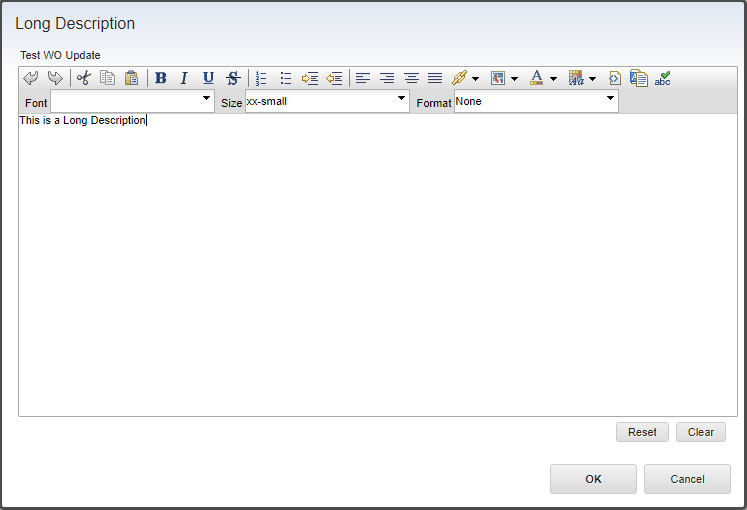
You can replace that editor with a plain textarea by changing the long-description control descriptor and redeploying the Maximo EAR. This is a system-wide web-client customization, so first decide whether removing formatting is worth the data, integration and upgrade impact.
Check existing content before changing the control
The editor stores formatting as HTML in the long description. Replacing the editor does not convert that data to plain text. Existing values can expose markup such as <b> and the <!-- RICH TEXT --> marker in the textarea.
Before implementation:
- Inventory existing long descriptions that contain HTML or the rich-text marker.
- Check integrations, reports, communication templates and mobile clients that read or write those values.
- Decide whether users should see the markup, retain read-only rendered HTML elsewhere, or have the data converted.
- Test any conversion against a restored database copy and preserve an original backup. Stripping tags without understanding the content can remove line breaks, encoded characters or meaningful data.
- Confirm that no application depends on editor-only behavior.
This change affects uses of the standard longdescription control. Applications that place a richtexteditor control directly in their presentation XML must be reviewed separately.
Back up the release-specific control registry
On the administrative workstation used to build the traditional Maximo EAR, locate:
<MAXIMO_ROOT>\applications\maximo\properties\control-registry.xmlThe installation used a path under SMP\maximo. Copy the file to a safe backup outside the build tree and keep the modified file in your controlled customization source.
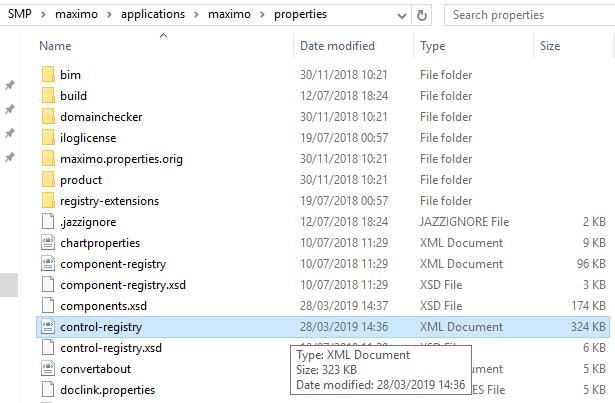
Open the file in an XML-aware editor and find:
<control-descriptor
  name="longdescription"
  instance-class="psdi.webclient.controls.LongDescription"
>
The exact XML varies by Maximo version and fix pack. Modify the descriptor shipped with the current installation rather than pasting an entire descriptor from another release.
Replace the rich text components
Within the descriptor's <component-list>, the Maximo 7.6.1 definition contains the editor, viewer and conditional textarea controls. The relevant structure is:
<components id="co4" layout="horizontal">
  <richtexteditor
    id="rte"
    dataattribute="@{dataattribute}"
    inputmode="@{inputmode}"
    width="@{width}"
    height="@{height}"
    plugins="@{plugins}"
    extra_plugins="@{extra_plugins}"
    dojo_require="@{dojo_require}"
    load_css="@{load_css}"
    dojo_type="@{dojo_type}"
    hidewhen="{mobile}==true"
  />
</components>
<components id="co5" layout="horizontal">
  <richtextviewer
    id="rtv"
    dataattribute="@{dataattribute}"
    width="@{width}"
    height="@{height}"
    hidewhen="{mobile}==false or {rendertextarea}==true"
  />
</components>
<components id="co6" layout="horizontal">
  <textarea
    id="ta"
    dataattribute="@{dataattribute}"
    width="@{width}"
    height="@{height}"
    inputmode="@{inputmode}"
    hidewhen="{mobile}==false or {rendertextarea}==false"
  />
</components>
Comment out those three component containers, then add one unconditional textarea after the comment:
<!--
<components id="co4" layout="horizontal">
  <richtexteditor
    id="rte"
    dataattribute="@{dataattribute}"
    inputmode="@{inputmode}"
    width="@{width}"
    height="@{height}"
    plugins="@{plugins}"
    extra_plugins="@{extra_plugins}"
    dojo_require="@{dojo_require}"
    load_css="@{load_css}"
    dojo_type="@{dojo_type}"
    hidewhen="{mobile}==true"
  />
</components>
<components id="co5" layout="horizontal">
  <richtextviewer
    id="rtv"
    dataattribute="@{dataattribute}"
    width="@{width}"
    height="@{height}"
    hidewhen="{mobile}==false or {rendertextarea}==true"
  />
</components>
<components id="co6" layout="horizontal">
  <textarea
    id="ta"
    dataattribute="@{dataattribute}"
    width="@{width}"
    height="@{height}"
    inputmode="@{inputmode}"
    hidewhen="{mobile}==false or {rendertextarea}==false"
  />
</components>
-->
<components id="co7" layout="horizontal">
  <textarea
    id="${name}_textarea"
    dataattribute="@{dataattribute}"
    width="@{width}"
    height="@{height}"
    inputmode="@{inputmode}"
  />
</components>
The generated ${name}_textarea ID avoids collisions when a page contains more than one long-description control. Keep the surrounding labels, required indicator, children container and any other release-specific elements unchanged.
Validate that the edited file is well-formed XML before building. A malformed control registry can prevent the web client from starting correctly.
Rebuild and deploy Maximo
Build a new maximo.ear from the modified source tree and deploy it through the normal application-server change process. Apply the same EAR to every cluster member and retain the previous EAR and original XML for rollback.
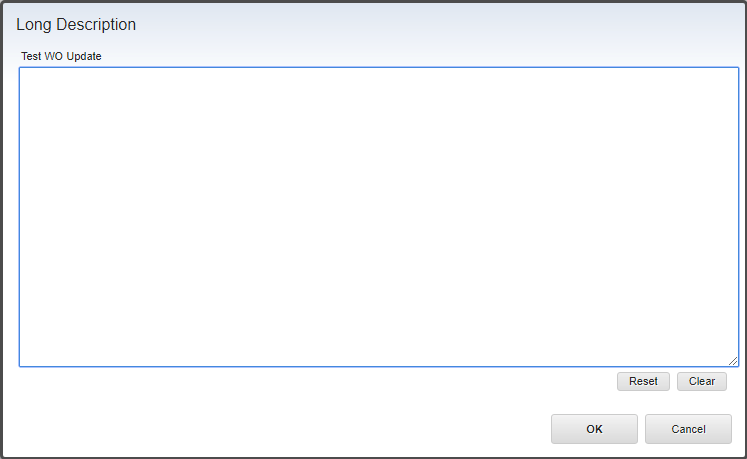
After deployment, long descriptions using the standard control should appear as plain textareas without the formatting toolbar:
Test at least:
- editable, read-only and required long descriptions;
- desktop and any supported mobile presentation;
- records containing plain text, HTML, special characters and multiple lines;
- saving, reopening, reporting and integration round trips;
- screens with more than one long-description control;
- applications that define
richtexteditordirectly.
Preserve the change through maintenance
A fix pack or interim fix can replace control-registry.xml. After maintenance, compare your customization with the newly supplied file and reapply the smallest necessary change. Do not overwrite the new vendor file with an old customized copy because that can remove fixes and new control attributes.
This procedure targets a traditional Maximo 7.6.1 EAR deployment. Maximo Manage customizations are packaged and deployed differently; use the supported customization archive for that version rather than editing a running container.