
An image that changes with the current record can make a warning or status easier to spot. A risk matrix on a work order is a common example.
This walkthrough uses a deliberately simple rule in Work Order Tracking:
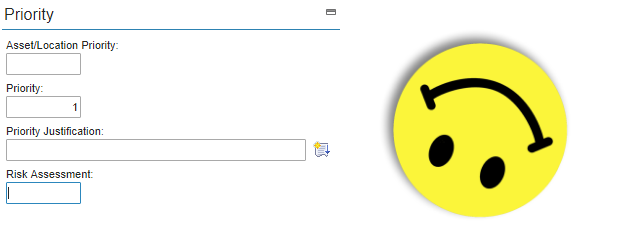
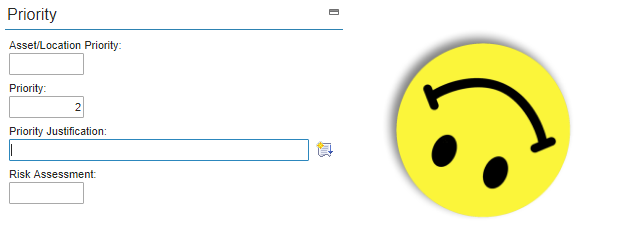
- priorities 1 and 2 show a sad face;
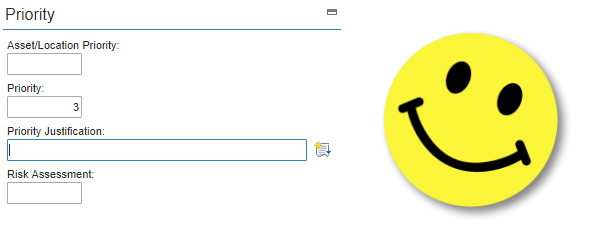
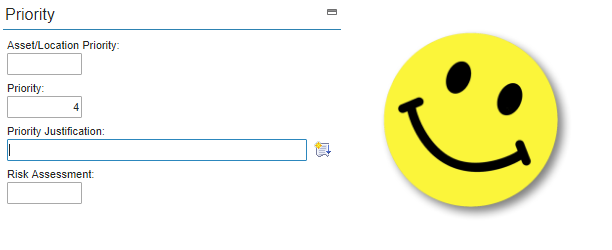
- every other non-blank priority shows a smile.
The two image files must already be deployed. Follow Add custom images to Maximo applications first if you have not done that yet.
Use an image to support the status, not as its only representation. Colour and facial expressions alone are not enough for users of assistive technology, so keep the priority field or equivalent text visible.
Create the conditions
Open Administration > Conditional Expression Manager and create these expression conditions against the WORKORDER object:
| Condition | Description | Expression |
|---|---|---|
SHOWSAD |
Show the sad face | :wopriority IN (1, 2) |
SHOWSMILE |
Show the smiling face | :wopriority NOT IN (1, 2) |
The leading colon matters: it tells Maximo to evaluate WOPRIORITY from the current work order. IBM's condition syntax reference explains this bind-variable form.
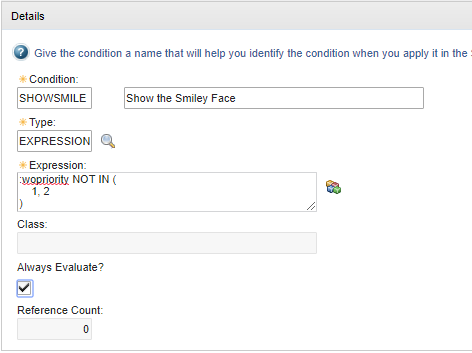
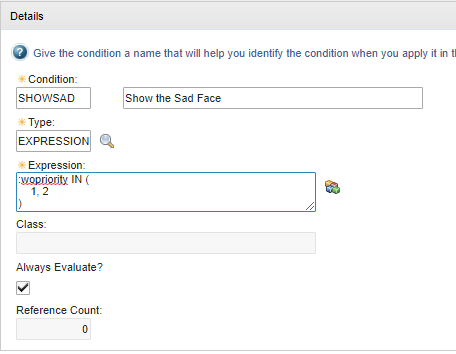
Both conditions have Always Evaluate selected. This lets the interface reevaluate them as the priority changes. A blank priority is NULL, so neither condition is true; the control retains its default image. Add an explicit condition for blank priorities if your interface needs a third state.
Add the image and signature option
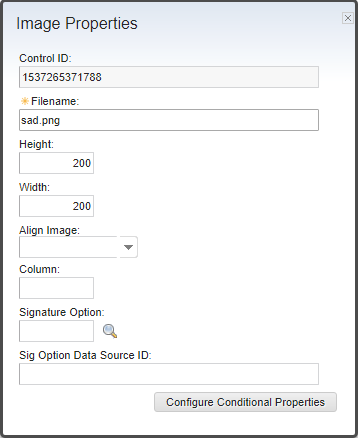
Open System Configuration > Platform Configuration > Application Designer, select Work Order Tracking and add an Image control where the status should appear. Set its default filename to sad.png.
From Select Action > Add/Modify Signature Options, add a visible signature option named FACEDEMO with a description such as Face Demo Image.
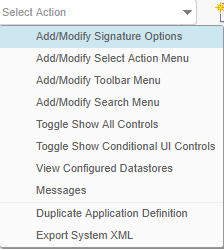
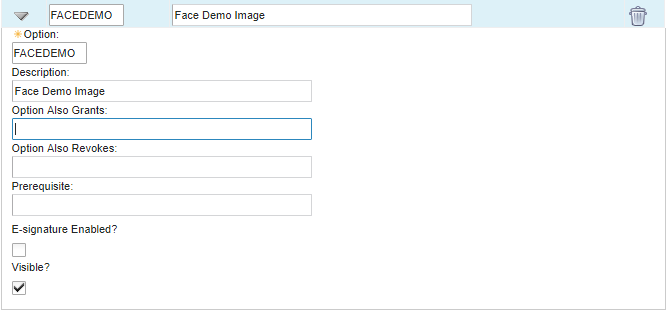
IBM documents the same process in Defining signature options for an application.
Configure the conditional image names
Select the Image control, open Control Properties and choose Configure Conditional Properties. Configure the following values:
- Select
FACEDEMOas the signature option. - Add the
EVERYONEsecurity group. - Add
SHOWSADandSHOWSMILEas conditions for that group, with reevaluation enabled. - For
SHOWSAD, add the propertyimagenamewith the valuesad.pngunder Condition is true. - For
SHOWSMILE, add the propertyimagenamewith the valuesmile.pngunder Condition is true.
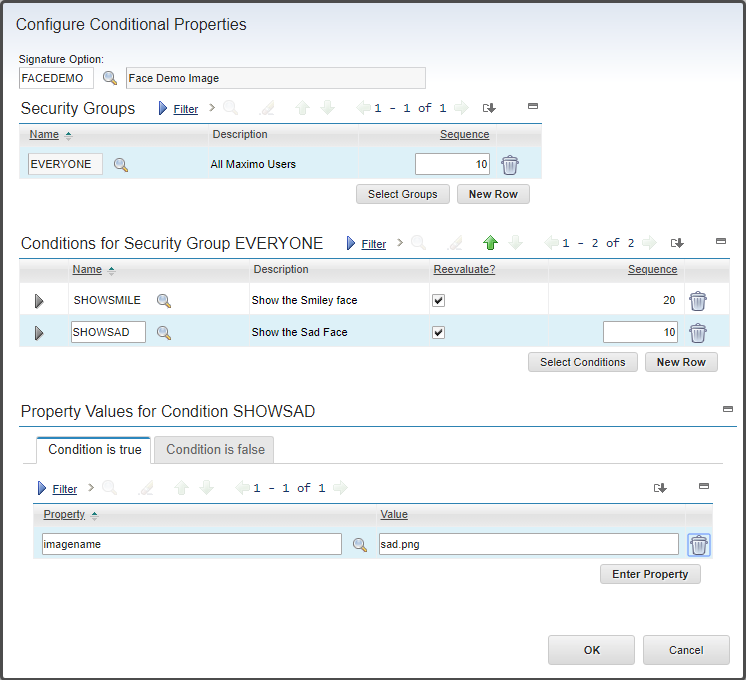
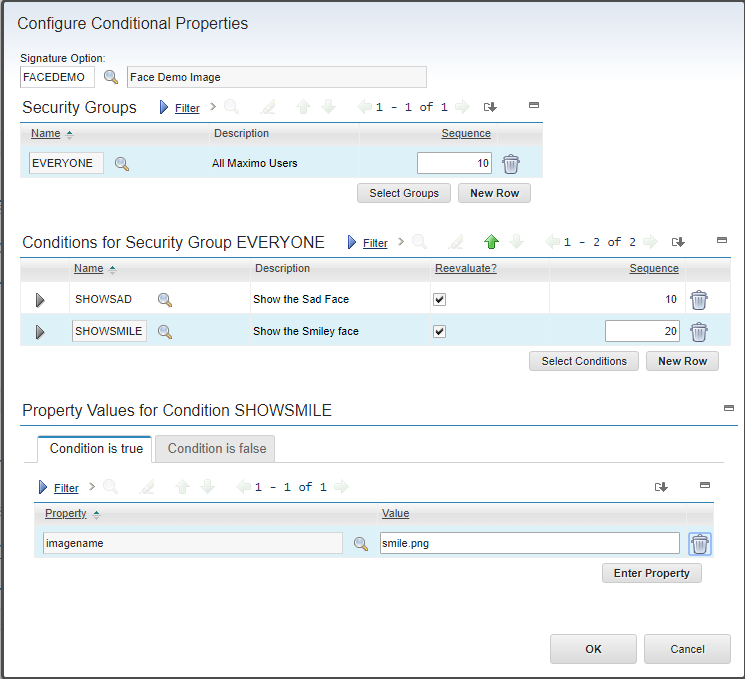
Keep the conditions mutually exclusive and give each one an explicit sequence. If two true conditions set the same property, the final value depends on their evaluation order and makes the result harder to reason about.
IBM's conditional control property procedure confirms the relationship between a control, signature option, security group, condition and property value.
Grant access and test
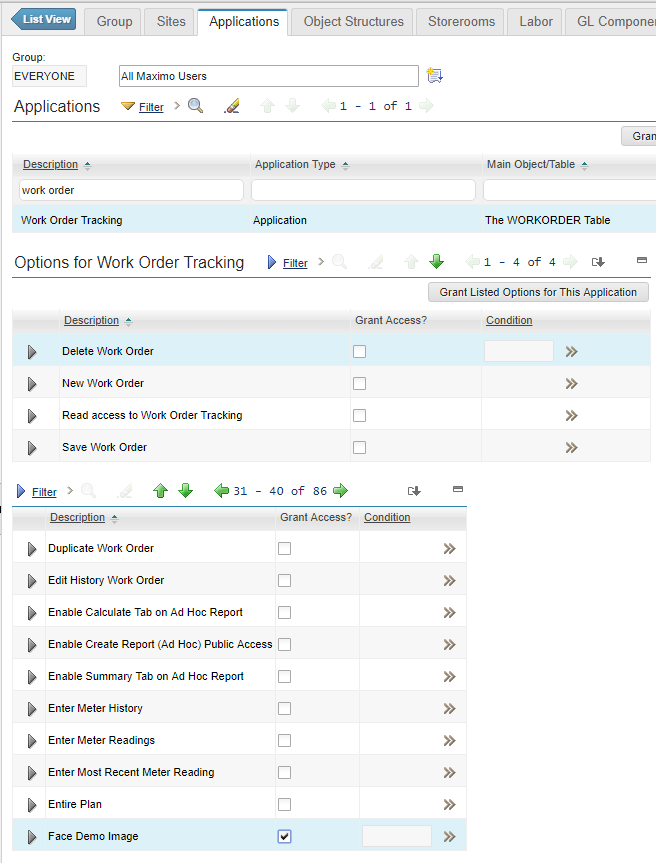
Save the application. In Security Groups, open the group used for all users, select Work Order Tracking and grant access to FACEDEMO. The example environment calls this group EVERYONE; some environments use MAXEVERYONE or a configured equivalent.
Sign out and back in so the security change reaches the session, then open a work order and change its priority. Priorities 1 and 2 should display the sad face; priorities 3 and 4 should display the smile.
If the image changes only after saving or moving to another record, confirm that Always Evaluate and the conditional property's reevaluation option are selected. If no users see the conditional result, check that the signature option is granted to the same group named in the control configuration.