
Before you begin: this procedure changes the key store used by the WebSphere web server plug-in. Back up
plugin-key.kdb, its stash file and the WebSphere configuration before continuing. Plan an IBM HTTP Server restart and test the change outside production first.
When the IBM HTTP Server plug-in cannot validate the certificate presented by WebSphere, Maximo requests can return HTTP 500 and http_plugin.log can contain this error:
Failed in r_gsk_secure_soc_init: GSK_ERROR_BAD_CERT(gsk rc = 414)This article fixes the common case in which the plug-in's CMS key store does not contain the signer for the WebSphere application server's certificate. Error 414 can also indicate an expired, malformed or otherwise unacceptable partner certificate, so confirm the certificate shown in the plug-in log before changing the key store.
IBM documents this symptom in its GSK_ERROR_BAD_CERT troubleshooting note.
Identify the exact signer certificate
Sign in to the WebSphere administrative console.
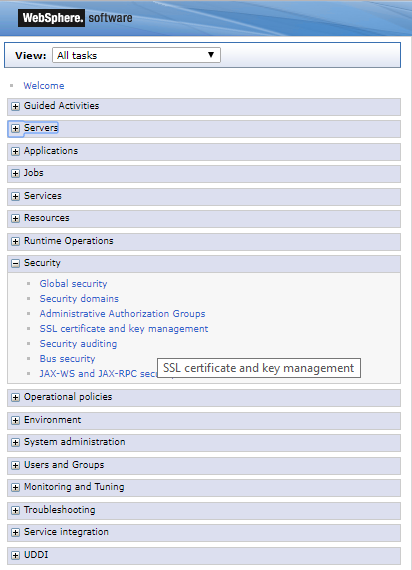
Open Security > SSL certificate and key management.
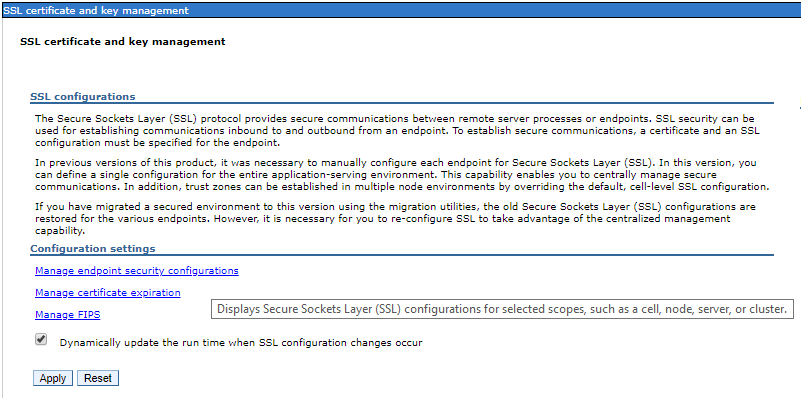
Select Manage endpoint security configurations.
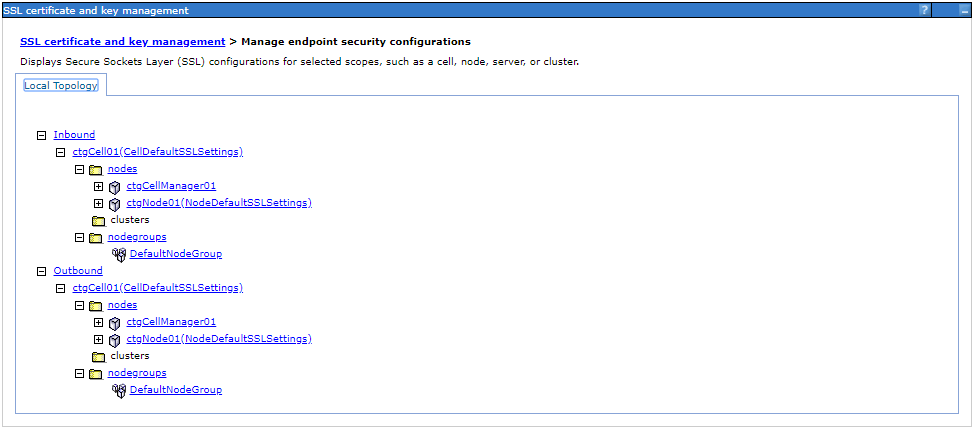
Expand Inbound, the cell and Nodes, then select the node that runs the Maximo application server. The example uses ctgNode01; use the node from your environment.
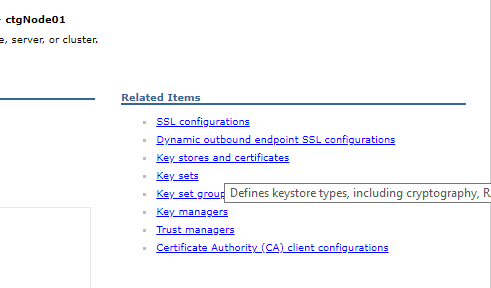
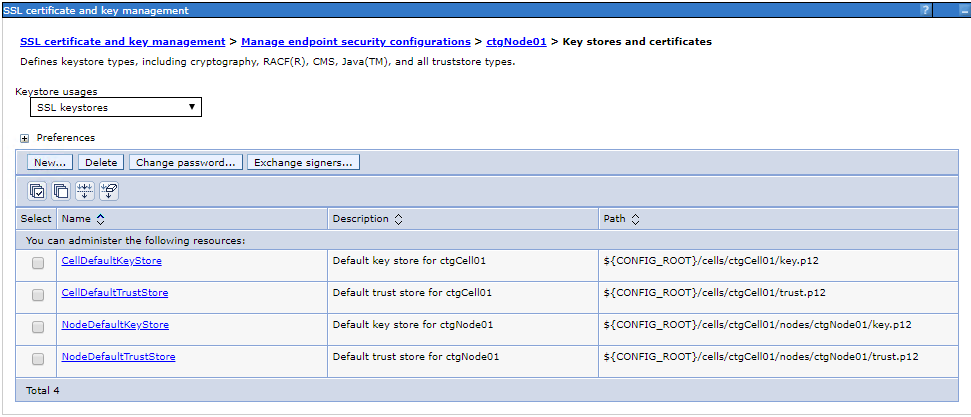
Open Key stores and certificates.
Open NodeDefaultKeyStore, then select Personal certificates.
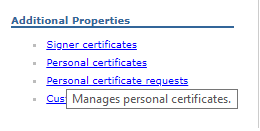
Open the chained personal certificate used by the application server. Record the signer certificate's common name and serial number from the certificate chain. Match both values; a common name alone is not enough to distinguish renewed or similarly named certificates.
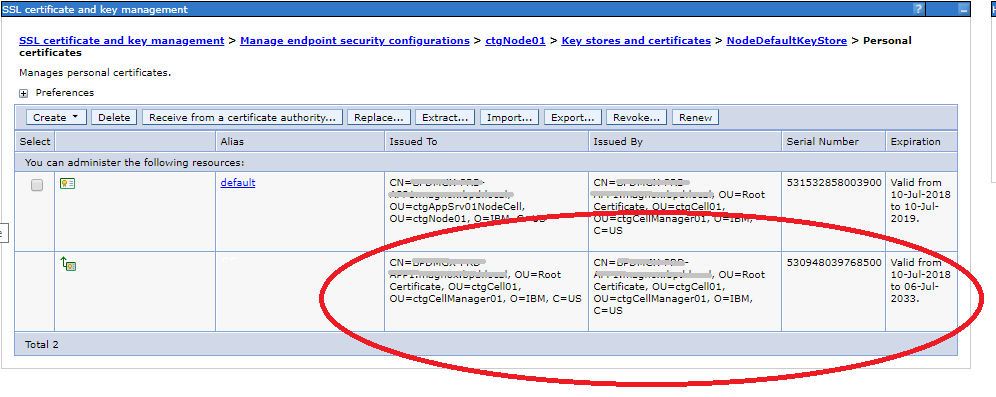
If http_plugin.log includes a PARTNER CERTIFICATE line, compare its distinguished name and serial number with this certificate. If they do not match, stop and identify the certificate actually presented to the plug-in.
Extract the signer from the node trust store
Return to Key stores and certificates, then open NodeDefaultTrustStore.

Select Signer certificates and locate the certificate whose name and serial number match the signer recorded above.
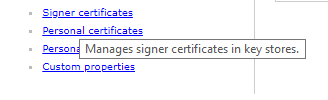

Select that certificate and choose Extract.

Enter a temporary path and file name, choose a certificate data type supported by the target CMS key store, then select OK. Keep the file in a restricted location.
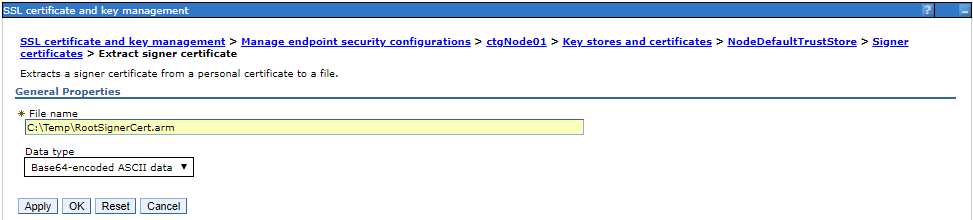
Confirm that WebSphere reports a successful extraction and that the file exists at the specified location.


Add the signer to the plug-in key store
Return to Manage endpoint security configurations.

Under the same node, expand Servers and select the web server definition. The example uses webserver1; select the definition used by your IBM HTTP Server plug-in.
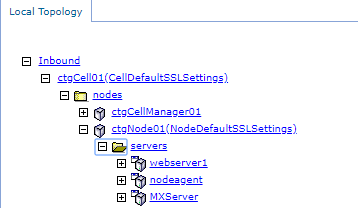
Open Key stores and certificates, then open CMSKeyStore. This WebSphere resource represents the plug-in's plugin-key.kdb file.
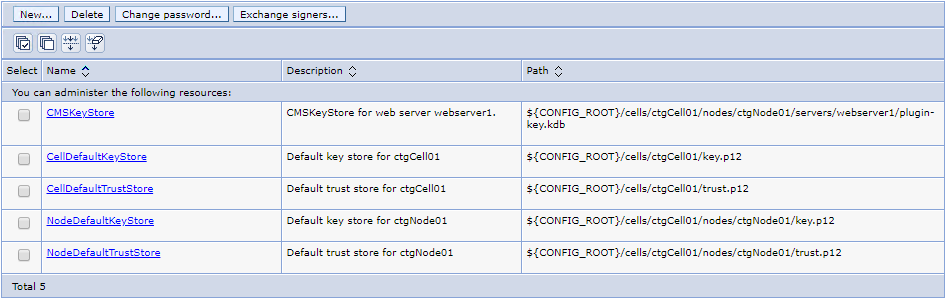
Open Signer certificates, select Add, then provide a unique alias and the path to the extracted signer certificate. Check the certificate details again before saving the master configuration.
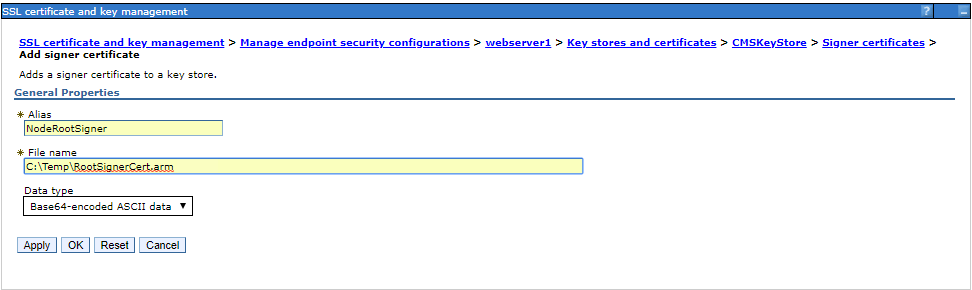
Repeat the signer comparison and import for every application-server node whose certificate chain is not already trusted by this plug-in key store. Nodes that present the same personal certificate need the matching signer only once.
IBM's plug-in signer procedure documents this signer exchange and confirms that CMSKeyStore maps to plugin-key.kdb.
Copy the key store to IBM HTTP Server
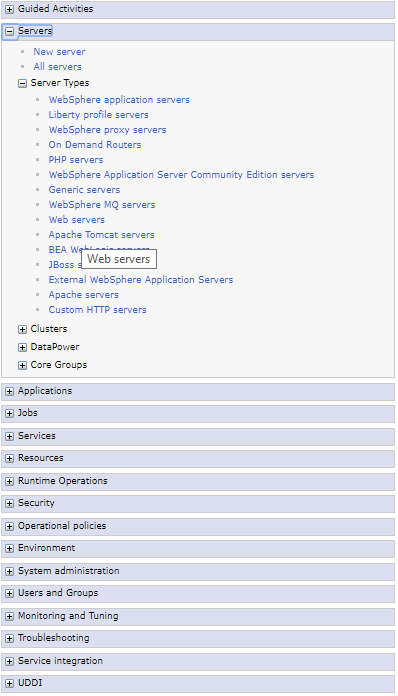
Open Servers > Server Types > Web servers.
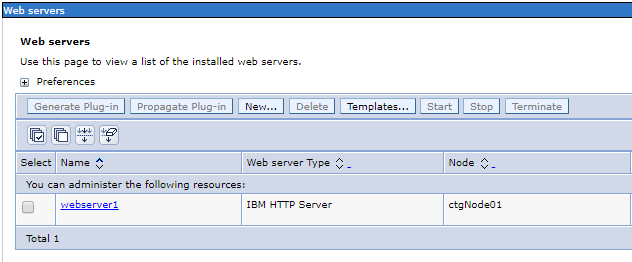
Select the web server definition, then open Plug-in properties.
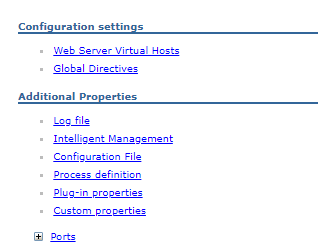
Select Copy to Web server key store directory. This propagates the repository copy of the key store and stash file to a managed web server.
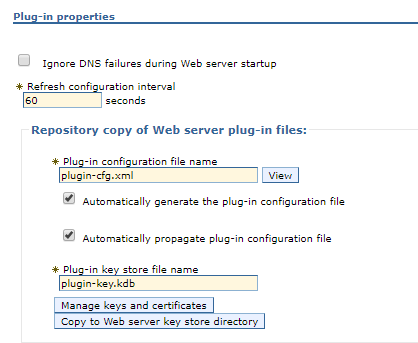
For a remote or unmanaged web server, copy the files using your approved deployment process and preserve their permissions. IBM's WebSphere 9 plug-in SSL documentation notes that the key store must be copied to the web server before the plug-in can use it.
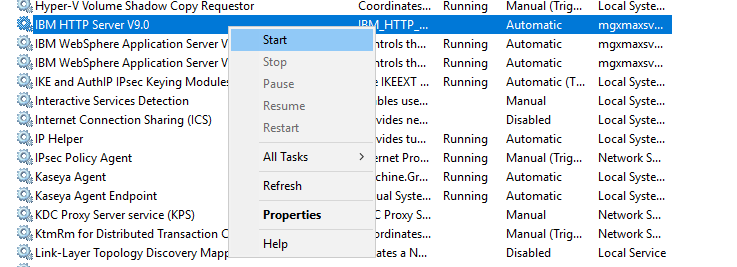
Restart IBM HTTP Server so the plug-in reloads the key store.
Open Maximo through IBM HTTP Server and confirm that the request no longer returns HTTP 500. Check http_plugin.log for a successful connection and verify that no new GSK_ERROR_BAD_CERT or PARTNER CERTIFICATE validation errors appear. Remove the temporary extracted certificate according to your organisation's certificate-handling policy.