
Custom Java code must produce bytecode that the Maximo application server can load. Compiling with whatever JDK happens to be installed on a developer workstation can produce UnsupportedClassVersionError at deployment time or hide API changes until runtime.
The safe rule is simple: identify the Java runtime used by the exact Maximo environment, then compile and test against that release's Maximo libraries and Java level.
Quick reference
These legacy values are historical compiler baselines, not a current support matrix:
| Maximo release | Historical Java baseline | Compiler target |
|---|---|---|
| 6.2 | Java 5 | 1.5 |
| 7.1.1.1–7.1.1.6 | Java 5 | 1.5 |
| 7.1.1.7–7.1.1.13 | Java 6 | 1.6 |
| 7.5 | Java 6 baseline | 1.6 |
| 7.6.0 | Java 7 baseline | 1.7 |
| 7.6.1 | Java 8 | 1.8 |
| Manage 8.6/8.7 and 9.0 | Java 11 runtime with Java 8 compatibility | Confirm for the installed update |
| Manage 9.1 before March 2025 | Java 11 runtime with Java 8 compatibility | Confirm for the installed update |
| Manage 9.1 from March 2025 | Java 17 | 17 |
Maximo 7.5 and 7.6 gained support for additional Java versions at particular fix-pack and middleware levels. Do not read the baseline as permission to run any later JDK. Use IBM's Maximo product configuration matrix for the precise Maximo, WebSphere, operating-system and Java combination.
IBM confirms that Maximo 7.6.1 uses IBM Java 8. For containerized releases, IBM's Java 17 transition notice describes the Java 11 compatibility runtime used by earlier Manage versions and the move to Java 17 in the March 2025 Manage 9.1 release.
Verify the actual runtime
Before changing the build:
- Record the complete Maximo or Manage version and update level.
- Check the Java runtime shown in Maximo System Information or in the application server's startup log.
- For traditional WebSphere deployments, verify the SDK enabled for the server or profile rather than relying on the first
javacommand in an administrator's shell path. - Check the IBM configuration matrix and any industry-solution requirements.
The JDK used to build Maximo, the JDK installed on a workstation and the runtime selected by WebSphere can all be different. The runtime loading the customization is the compatibility boundary that matters.
Configure the compiler level
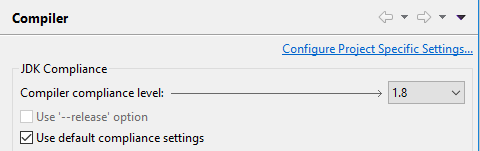
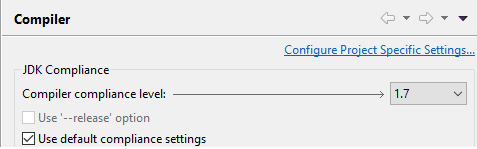
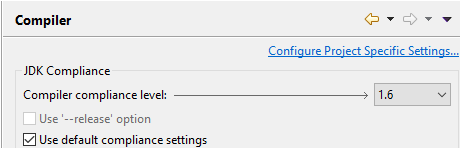
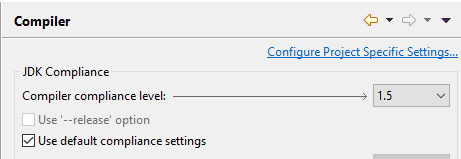
In Eclipse, open the project's Properties > Java Compiler, enable project-specific settings and select the compliance level that matches the target environment.
Java 8
Java 7
Java 6
Java 5
A compiler's source setting is only part of the build. Compile against libraries from the target Maximo release and use a toolchain capable of producing that old class format. Current JDK releases have removed several old source and target levels, so selecting 1.5 or 1.6 in a modern IDE does not guarantee that its installed compiler can generate valid output.
For Java 8 and later toolchains, prefer a release-aware compiler option when it supports the target. It prevents code from accidentally using Java APIs introduced after the intended runtime. For very old Maximo releases, use an isolated legacy build environment rather than weakening the JDK used for current development.
Check an existing class
javap -verbose displays the class-file major version:
javap -verbose MyCustomization.classLook for major version in the output:
| Java release | Class major version |
|---|---|
| Java 5 | 49 |
| Java 6 | 50 |
| Java 7 | 51 |
| Java 8 | 52 |
| Java 11 | 55 |
| Java 17 | 61 |
This confirms the produced bytecode level, but it does not prove that the code uses compatible Maximo APIs. Compile against the target release's JAR files and run regression tests in an environment at the same product and Java update level.
IBM publishes reviewed JavaDocs for Maximo 7.6.1.x and Manage 8.x. When moving to Java 17, recompile and test custom JARs even if older bytecode loads successfully; removed modules, dependencies and changed APIs can still break the customization.
Treat old runtimes as a migration constraint
Java 5, 6 and 7 environments are legacy systems with significant support and security constraints. IBM ended WebSphere 8.5.x support for Java 7, and Maximo 7.5 itself is out of support. Keep an old compiler only in a restricted, reproducible build environment while planning the application upgrade; do not use an obsolete JDK as a general workstation runtime.