
Maximo list searches can do much more than match a word. The value you enter in a list-tab filter becomes part of the query, so a small amount of syntax can turn a long result set into the records you actually need.
These examples use the Work Order Tracking list. The same operators work in many other Maximo application search fields, although the attribute type and application configuration determine which operators are valid.
Quick reference
| Search value | Meaning |
|---|---|
=APPR |
Exactly APPR |
=APPR,=WMATL |
Exactly APPR or WMATL |
!=APPR |
Anything except APPR |
<2 or <=2 |
Less than, or less than or equal to, 2 |
>8 or >=8 |
Greater than, or greater than or equal to, 8 |
SEC% |
Starts with SEC |
%SECURITY% |
Contains SECURITY |
_.SMITH |
Any one character followed by .SMITH |
~null~ |
No value |
!=~null~ |
Has a value |
TODAY |
Any time today |
<=TODAY |
Today or earlier |
YTD |
From the start of this year to today |
The SQL fragments below illustrate the important predicate. Maximo adds application, site, security and other filters to the complete query.
Match an exact value
Enter =APPR in the Status filter when you want only approved work orders:
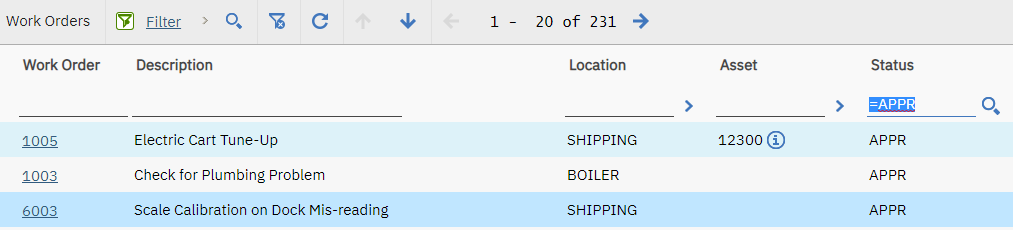
WHERE
  STATUS = 'APPR'
Without the equals sign, Maximo performs a contains search. Entering APPR can therefore return both APPR and WAPPR:

WHERE
  STATUS LIKE '%APPR%'
Separate exact values with commas to match any of them. For example, =APPR,=WMATL returns approved work orders and those waiting for material:
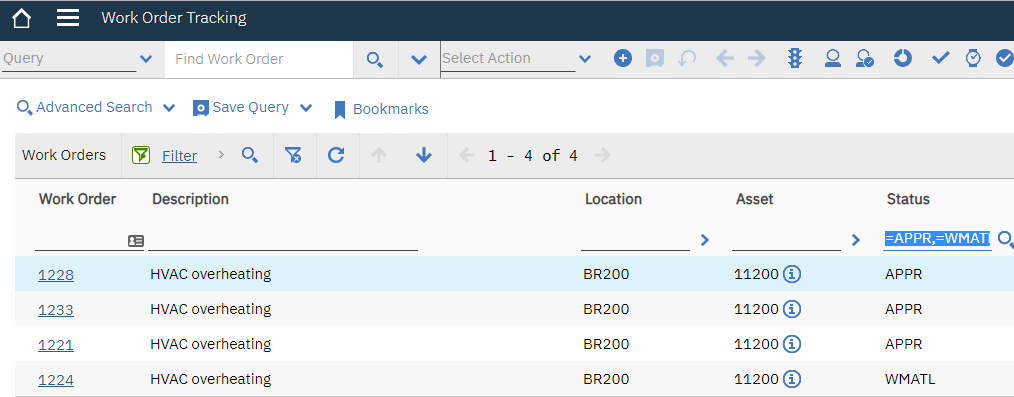
WHERE
  (
    STATUS = 'APPR'
    OR STATUS = 'WMATL'
  )
Exclude a value
Use !=APPR to exclude approved work orders:
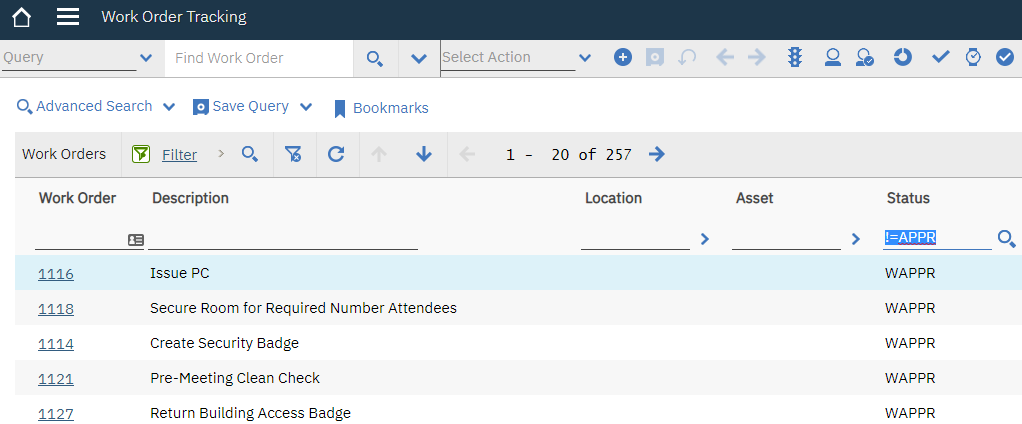
WHERE
  STATUS != 'APPR'
Remember that SQL comparisons with NULL behave differently from comparisons with a value. Use Maximo's null syntax when blank values matter.
Compare numbers
The standard comparison operators work on numeric fields. These examples use Work Priority.
Use <2 for priorities below 2:
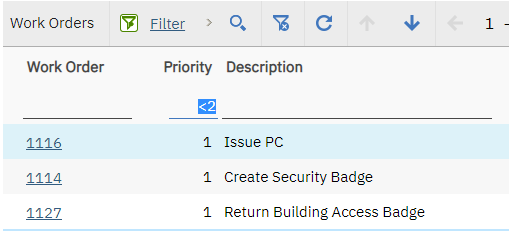
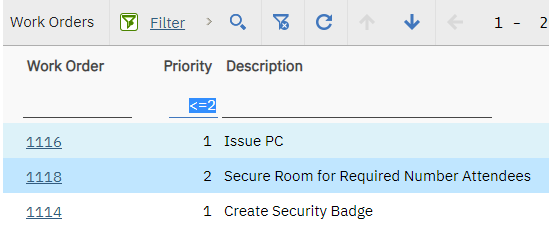
Use <=2 to include priority 2:
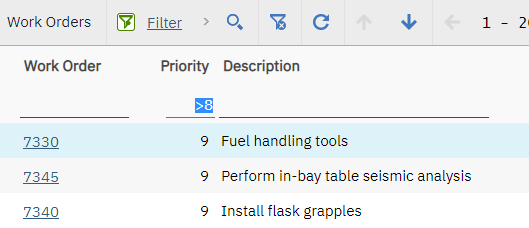
Use >8 for priorities above 8:
Use >=8 to include priority 8:
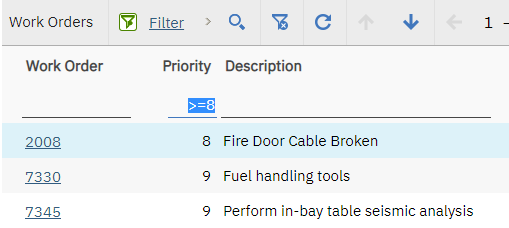
The resulting predicate follows the operator you entered, for example:
WHERE
  WOPRIORITY >= 8
Search dates and times
Enter a date in the format shown by your Maximo profile and environment. Searching for a date without a time covers the whole day:
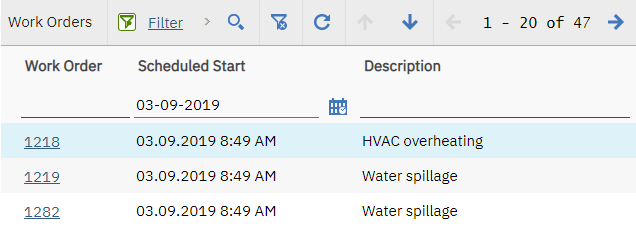
Conceptually, Maximo turns that into a range:
WHERE
  SCHEDSTART BETWEEN '2019-09-03 00:00:00.000'
    AND '2019-09-03 23:59:59.999'
Add an hour to narrow the range. In the example environment, 03/09/2019 08 returns records scheduled from 08:00 through 08:59:
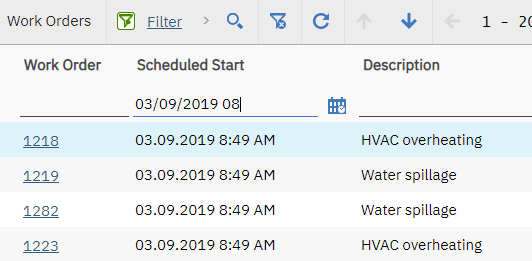
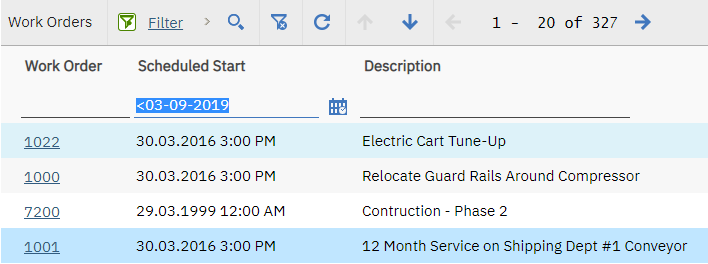
You can also combine a comparison operator with a date. <03-09-2019 returns dates before the start of 3 September in this example:
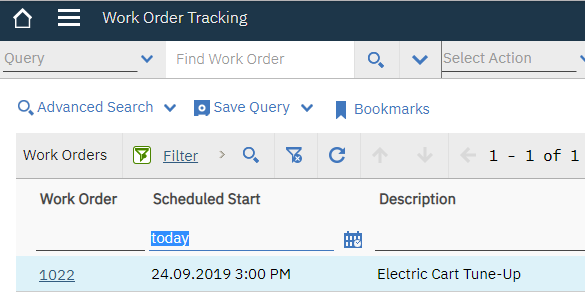
Date keywords save you from entering a changing date. TODAY covers the current day:
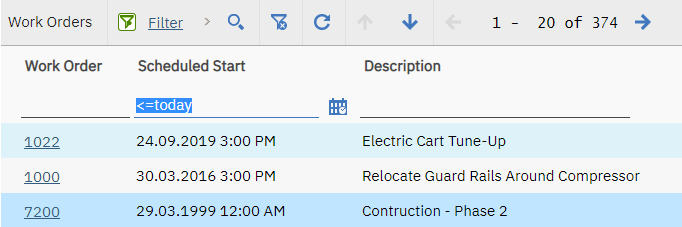
Operators also work with keywords. <=TODAY includes today and earlier dates:
YTD returns dates from the beginning of the current year through today:
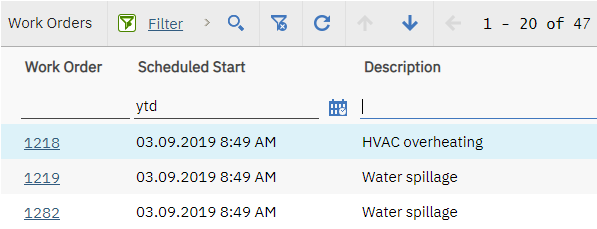
Date boundaries use the application server's interpretation of the user's date, time-zone and locale settings. Check the generated where clause if a result appears close to the wrong boundary.
Find blank and populated fields
Use ~null~ to return records where the field has no database value. Here it finds work orders with a null description:
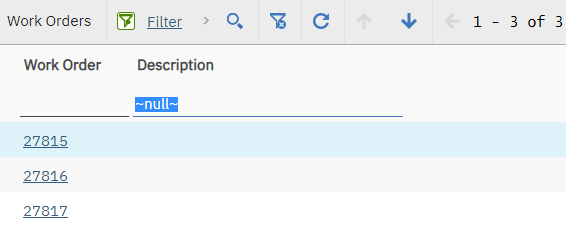
WHERE
  DESCRIPTION IS NULL
Use !=~null~ to require a value:
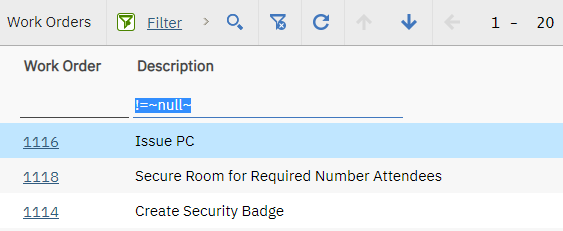
WHERE
  DESCRIPTION IS NOT NULL
This syntax is not valid for every attribute type. In particular, use date comparisons rather than null syntax where the application does not accept it on a date field.
Match several characters
The SQL wildcard % represents any number of characters. Use SEC% to find descriptions that begin with SEC:
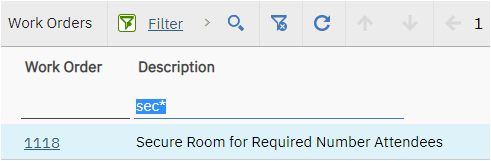
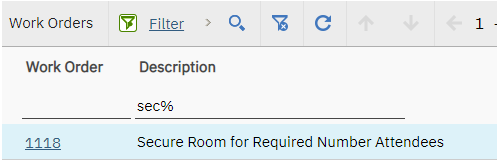
Some traditional Maximo environments also accept * and translate it to %, as the first screenshot shows. % is the safer form across versions and configurations.
Put % on both sides when the text can appear anywhere in the field. %SECURITY% produces:
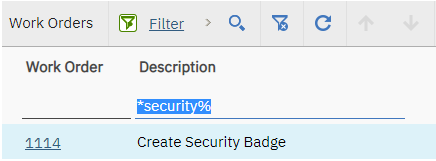
WHERE
  DESCRIPTION LIKE '%SECURITY%'
An unanchored search such as %SECURITY% is convenient, but it may be expensive on a large table because the database cannot use a normal index as efficiently. Prefer an exact match or a prefix search when you know the start of the value.
Match one character
_ represents exactly one character. For example, _.SMITH matches both A.SMITH and B.SMITH:
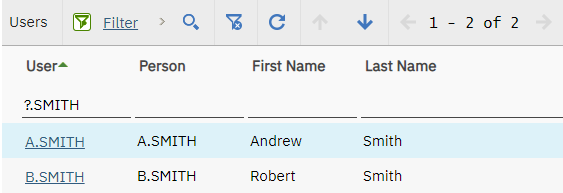
WHERE
  USERID LIKE '_.SMITH'
Some interfaces also accept ? as the single-character wildcard. _ directly matches the SQL wildcard and is the clearer option when moving between tools.
Check what Maximo actually queried
Open Advanced Search, then Where Clause, after running a search. It shows how Maximo interpreted the values and which application filters it added. This is particularly useful when checking date boundaries, wildcard placement or an unexpectedly broad result set.
Search behaviour can vary with the field's data type, domain, search type and system properties. Test important saved queries against representative data after an upgrade or configuration change.