
Maximo 7.6 introduced the side navigation menu. When it is enabled, buttons added through Application Designer normally move from the application toolbar into the menu's Common Actions section.
That is useful for most actions, but you might want a frequently used button to remain visible on the top toolbar. The mxe.webclient.showOnToolbar system property controls which events are allowed to appear there.
Find the button's event
Open the application in Application Designer and select Add/Modify Toolbar Menu. Find the button and note the action or event configured as its Key Value. This is the value that must be added to the property.
For example, if a custom button fires an event named MYACTION, add MYACTION to the list. Use the event identifier, not the button's visible label or description.
Update mxe.webclient.showOnToolbar
Open System Configuration → Platform Configuration → System Properties and find:
mxe.webclient.showOnToolbarIts global value is a comma-delimited list of events that may remain on the toolbar. Append the custom event without removing the existing values. A result might look like this:
INSERT,SAVE,CLEAR,PREVIOUS,NEXT,NAVHISTORY,MYACTION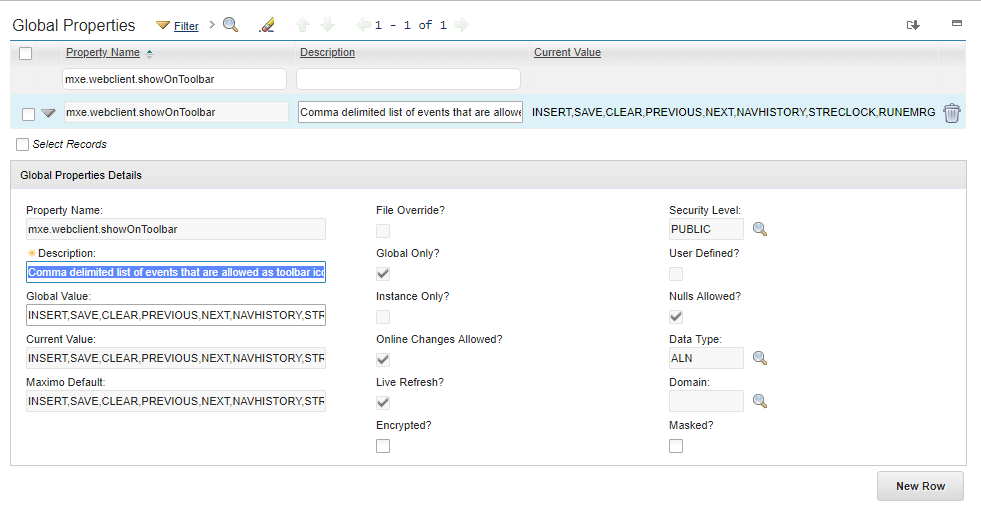
Do not add spaces around the event name. Maximo compares entries from the list with the event identifier, so an entry such as MYACTION can fail to match and leave the button in the side navigation menu.
Save the property, select its row, and choose Live Refresh. If the property has an instance-specific value, check that it does not override the global value on a user-interface JVM.
Verify the result
Reload the application and check the button with side navigation enabled. It should appear on the top toolbar rather than under Common Actions.
Test with a user who has permission to run the action. The property controls placement; it does not grant signature-option access or make a conditionally hidden button visible.
Also check the application at the viewport sizes your users rely on. Keeping too many actions on the top toolbar can cause crowding on smaller screens, which is one reason Maximo moves them into the side menu by default.
To reverse the change, remove only the custom event from mxe.webclient.showOnToolbar, save, and live refresh the property again.
Related properties
These properties control nearby parts of the same interface:
mxe.webclient.hideOnNavbarlists events that should not appear in the side navigation menu.mxe.webclient.showSelectActionInToolbarcontrols whether Select Action is shown on the toolbar.mxe.webclient.ShowQueriesInToolbarcontrols whether the queries menu is shown on the toolbar.mxe.webclient.systemNavBarenables or disables side navigation at system level.
They solve different problems, so do not change them merely to place one custom action on the toolbar.