
A Maximo table column can have a lookup and a Go To Application menu. In some legacy interfaces, setting that column to read-only also makes its menu icon disappear, taking both options with it.
You can keep the column read-only and restore the menu by adding an explicit textbox control inside the table column.
The disappearing menu
The Related Work Orders table in Work Order Tracking provides a useful example. Its work order number column has a lookup and an application menu.
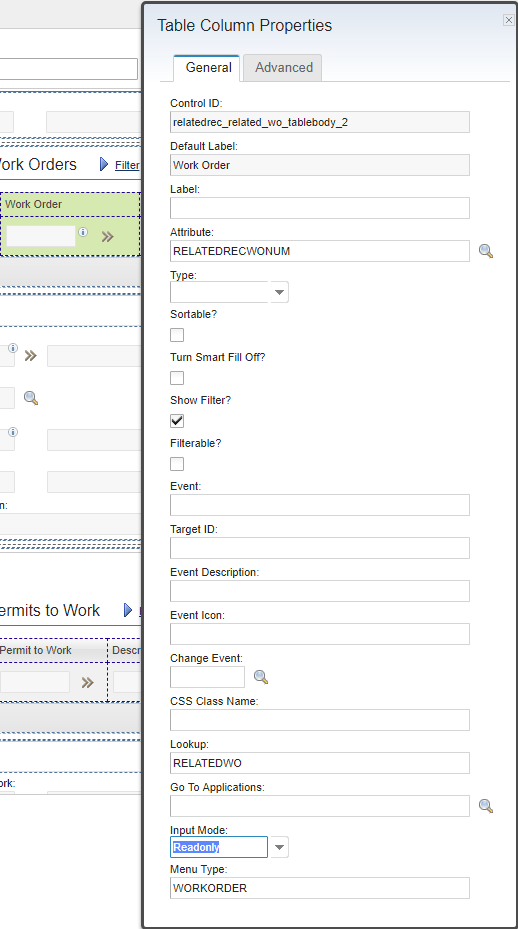
Set the column's Input Mode to Readonly in Application Designer:
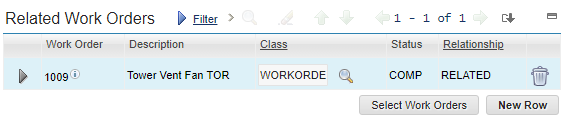
The value remains visible, but the menu icon after the work order number is gone:
A tablecol normally generates the control used to display its data at runtime. In this configuration, its read-only rendering does not retain the menu trigger. Giving the column an explicit child textbox changes that rendering path while the parent column remains read-only.
Add a textbox to the table column
Before editing the application, export its XML so you have a rollback copy.
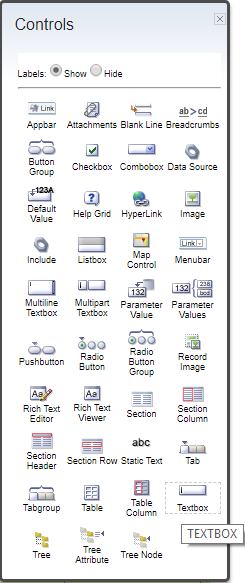
Open the application in Application Designer, locate the affected table column, and drag a Textbox control directly onto the column. The textbox must be a child of the tablecol, not another column beside it.
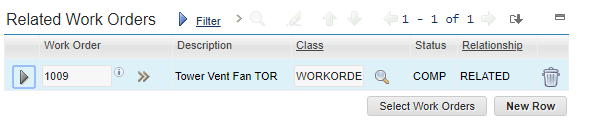
Save the application and reload it. The menu icon should return next to the read-only value:
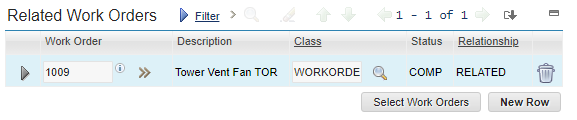
The XML change
The original column is self-closing:
<tablecol
  dataattribute="relatedrecwonum"
  id="relatedrec_related_wo_tablebody_2"
  inputmode="readonly"
  lookup="relatedwo"
  menutype="workorder"
  rechover="wo_recordhover"
  sortable="false"
/>
The working version contains a textbox:
<tablecol
  dataattribute="relatedrecwonum"
  id="relatedrec_related_wo_tablebody_2"
  inputmode="readonly"
  lookup="relatedwo"
  menutype="workorder"
  rechover="wo_recordhover"
  sortable="false"
>
  <textbox id="relatedrec_related_wo_tablebody_2_textbox" />
</tablecol>
The original XML used a timestamp as the textbox ID. The descriptive ID above is easier to maintain; it only needs to be unique within the application presentation.
If you edit XML directly, import it through Application Designer rather than changing deployed files. A malformed presentation can prevent the application from opening, which is why the exported rollback copy matters.
Verify the behavior
Test with the same permissions and conditional UI rules used by real users:
- Confirm that the value cannot be edited directly.
- Open the menu and check that the intended lookup and application links are present.
- Follow each Go To option and confirm that it opens the correct record.
- Return to the source application and confirm its record and table position are preserved.
- Check filtering, sorting, record hover and keyboard navigation on the changed column.
This workaround addresses how the table column is rendered. It cannot override a database configuration or data restriction that removes access, and it does not grant permission to a linked application.
The exact Maximo version used for this example is unknown. Test the behavior before applying the workaround because table controls and skins have changed across releases.