
A standard Maximo lookup is usually a filterable table. When users need controls that change which records appear, a lookup can instead open a full dialog containing checkboxes, lists, buttons and a results table.
The Job Plan field in Work Order Tracking is a useful example. Its lookup can restrict the results to job plans for the work order's asset and location, include classless job plans, and filter by work order class.
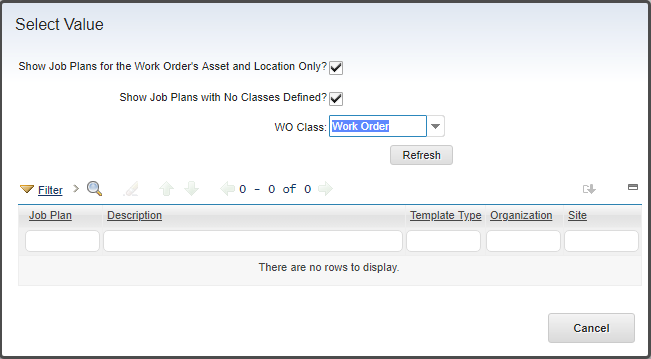
This is a lookup dialog, not a Maximo domain. A domain can help determine or validate the available values for an attribute, while the dialog defines the user interface that opens from the field.
Decide where the dialog belongs
Put an application-specific dialog inside that application's presentation XML. Put a dialog in a system XML file only when it is intentionally shared by several applications.
IBM documents lookups.xml as the system definition for shared lookup IDs and library.xml for shared system dialogs. The Job Plan example is useful as a pattern, but choose the destination according to the scope of your new dialog rather than editing a shared definition by default.
Before changing XML:
- Export the application definition or relevant system XML from Application Designer.
- Save an untouched backup.
- Make and test the change in a nonproduction environment.
- Give every added control a unique
id. - Import the complete XML through Application Designer and check that it parses before promoting it.
Changing a shared system dialog can affect every application that calls it.
Understand the Job Plan example
The Work Order lookup dialog has the ID lookup_wo_jobplan. Its bean is psdi.webclient.beans.workorder.JobPlanBean, a product class that extends the standard lookup behavior with Job Plan-specific filtering.
<dialog
  beanclass="psdi.webclient.beans.workorder.JobPlanBean"
  icon="img_lookup.gif"
  id="lookup_wo_jobplan"
  label="Select Value"
>
  <section border="true" datasrc="MAINRECORD" id="jobplan_grid1">
    <sectionrow id="jobplan_grid1_1">
      <sectioncol id="jobplan_grid1_1_1">
        <section id="jobplan_grid1_1_1_grid2">
          <checkbox
            dataattribute="jpassets"
            id="jobplan_grid1_1_1_grid2_1"
            label="Show Job Plans for the Work Order's Asset and Location Only"
          />
          <checkbox
            dataattribute="jpincludeclassless"
            id="jobplan_grid1_1_1_grid2_classless"
            label="Show Job Plans with No Classes Defined"
          />
          <combobox
            dataattribute="jpclass"
            id="jobplan_grid1_1_1_grid2_woclass"
            label="WO Class"
            smartfilloff="true"
          />
        </section>
      </sectioncol>
    </sectionrow>
    <buttongroup id="jobplan_grid1_1_1_Tblbuttons2">
      <pushbutton
        id="jobplan_grid1_1_1_Tblbuttons2_1"
        label="Refresh"
        mxevent="REFRESHLIST"
      />
    </buttongroup>
  </section>

  <table id="jobplan_table" inputmode="readonly" selectmode="single">
    <tablebody
      displayrowsperpage="15"
      filterable="true"
      filterexpanded="true"
      id="jobplan_lookup_tablebody"
    >
      <tablecol
        dataattribute="jpnum"
        id="jobplan_lookup_tablebody_col_10"
        mxevent="selectrecord"
        mxevent_desc="Go To %1"
        sortable="true"
        type="link"
      />
      <tablecol
        dataattribute="description"
        id="jobplan_lookup_tablebody_col_11"
        mxevent="selectrecord"
        mxevent_desc="Go To %1"
        sortable="true"
        type="link"
      />
      <tablecol
        dataattribute="templatetype"
        id="jobplan_lookup_tablebody_col_14"
        mxevent="selectrecord"
        mxevent_desc="Go To %1"
        sortable="true"
        type="link"
      />
      <tablecol
        dataattribute="orgid"
        id="jobplan_lookup_tablebody_col_12"
        mxevent="selectrecord"
        mxevent_desc="Go To %1"
        sortable="true"
        type="link"
      />
      <tablecol
        dataattribute="siteid"
        id="jobplan_lookup_tablebody_col_13"
        mxevent="selectrecord"
        mxevent_desc="Go To %1"
        sortable="true"
        type="link"
      />
    </tablebody>
  </table>

  <buttongroup id="jobplan_2">
    <pushbutton
      default="true"
      id="jobplan_2_1"
      label="Cancel"
      mxevent="dialogcancel"
    />
  </buttongroup>
</dialog>
The main parts are:
- The dialog's
beanclasshandles lookup behavior and the extra filters. - The section bound to
MAINRECORDexposes filter attributes managed by that bean. REFRESHLISTasks the bean to rebuild or refresh the result set after a filter changes.- The read-only table displays selectable Job Plan records.
selectrecordreturns the selected row through the lookup framework.dialogcancelcloses the window without selecting a value.
Do not copy this XML unchanged for an unrelated object. The jpassets, jpincludeclassless and jpclass attributes, and the JobPlanBean logic behind them, are specific to this product lookup. Start with the structure, then bind your own controls to attributes and behavior that actually exist.
For a lookup that only needs a normal result table, use Maximo's standard lookup support. A custom Java bean is justified when the extra controls require server-side filtering or event handling that standard configuration cannot provide.
Connect the dialog to the field
The dialog ID uses the lookup_ prefix, but the field's Lookup property uses the remaining name. For this example:
Dialog ID: lookup_wo_jobplan
Field lookup: wo_jobplan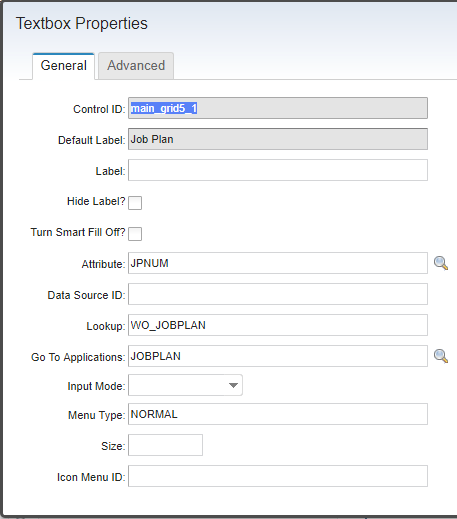
In presentation XML, the same connection appears as a lookup attribute on the field control:
<textbox dataattribute="jpnum" id="workorder_jpnum" lookup="wo_jobplan" />Use the actual control ID and data attribute from your application. The selected record must return a value compatible with that attribute's relationship, domain or field class; opening the right dialog is only half of the configuration.
Test the complete lookup
After importing the XML, test with a user who has realistic security and site access:
- Open the lookup from both an empty field and a field that already has a value.
- Change every extra filter and refresh the list.
- Select a result and confirm that the expected value returns to the field.
- Cancel and confirm that the existing value remains unchanged.
- Test no-result, many-result and multi-organization or multi-site cases.
- Check keyboard navigation, labels and focus when the dialog opens and closes.
- Review the application-server log for invalid bindings, bean errors or XML warnings.
If the dialog does not open, verify the lookup_ naming pair and the scope in which the dialog was defined. If it opens with invalid bindings, check the bean, data source and every dataattribute. If the wrong value returns, inspect the attribute's field class, domain and relationship rather than changing only the visible table columns.
The exact Maximo release used for this example is unknown. Test the behavior on your installed release before applying it.