
A legacy configuration connects Maximo directly to Exchange Online using smtp.office365.com, STARTTLS and a mailbox password. That was a reasonable Office 365 configuration in 2019. It is now a legacy design.
Microsoft reports that Basic authentication is disabled in Exchange Online tenants. Current SMTP AUTH uses OAuth, while traditional Maximo's mxe.smtp.user and mxe.smtp.password properties provide username-and-password authentication. Do not build a new integration around this password-based procedure without written confirmation that your Maximo version and Microsoft 365 design support the chosen authentication flow.
Choose the mail path first
Work with the Microsoft 365 and security administrators to choose one of these patterns:
- Use an OAuth-capable mail integration supported by your Maximo release.
- Send from Maximo to a controlled internal SMTP relay, then let that relay use a supported method to deliver to Microsoft 365.
- Use a Microsoft 365 SMTP relay connector when the organization's network, static public IP or certificate design meets Microsoft's requirements.
- Keep a non-Microsoft SMTP service for application mail when that is the supported enterprise pattern.
The rest of this article preserves the old direct SMTP AUTH setup because it remains useful for understanding Maximo's mail properties and maintaining environments that still use a compatible SMTP server. It is not evidence that mailbox-password authentication will work with Exchange Online today.
Legacy connection settings
The example configuration used:
| Setting | Value |
|---|---|
| SMTP host | smtp.office365.com |
| SMTP port | 587 |
| Transport security | STARTTLS |
| Authentication | Mailbox username and password |
Port 587 is the SMTP client-submission port. The old screenshot used port 993 while retrieving a certificate; 993 is IMAPS and must not be copied into the Maximo SMTP configuration.
Microsoft requires TLS 1.2 or later for current SMTP AUTH connections. Confirm that the Java runtime, WebSphere configuration, outbound firewall and any proxy support the required protocol before changing Maximo.
Trust the certificate chain in WebSphere
A current Java truststore should normally trust the public certificate authority used by Microsoft 365. Manually importing an endpoint certificate can create a fragile dependency when Microsoft rotates certificates. Only change the WebSphere truststore when a TLS handshake proves that the chain is untrusted, and follow your organization's certificate-management process.
Use this WebSphere path:
-
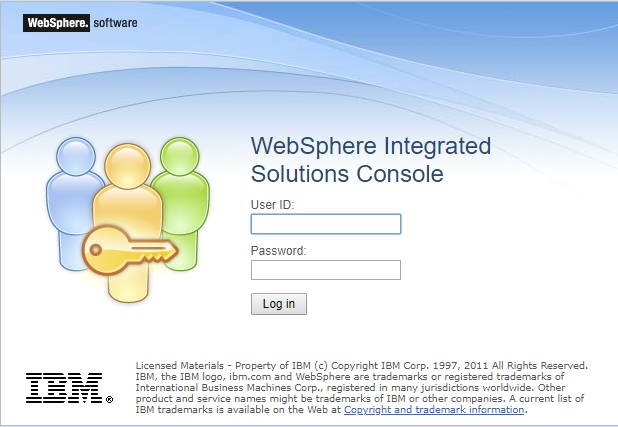
Sign in to the Integrated Solutions Console.
-
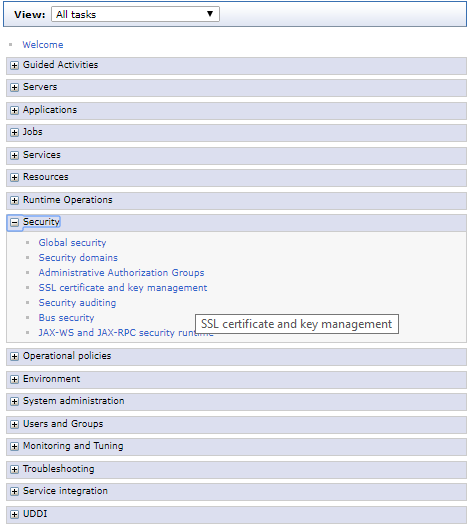
Open Security → SSL certificate and key management.
-
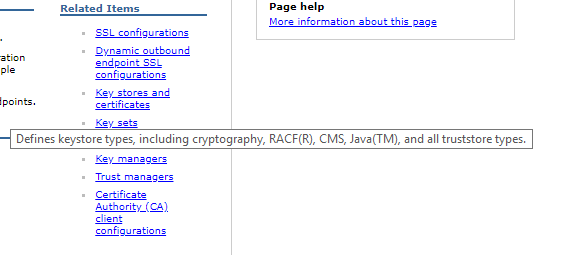
Under Related Items, open Key stores and certificates.
-
Select the truststore with the correct scope. The example used
CellDefaultTrustStore, which makes the signer available across the cell. A node-scoped truststore may be more appropriate for a limited deployment.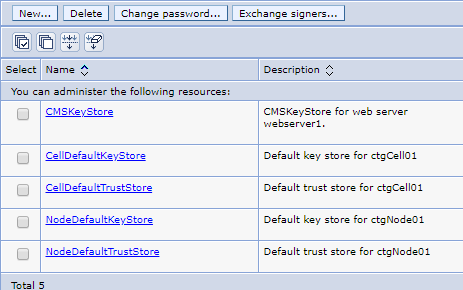
-
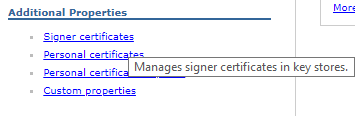
Under Additional Properties, open Signer certificates, then choose Retrieve from port.

The historical form and certificate review looked like this:
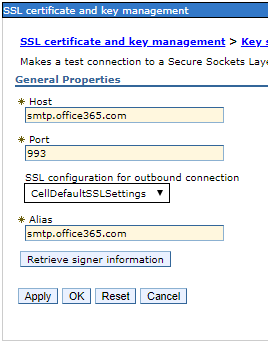
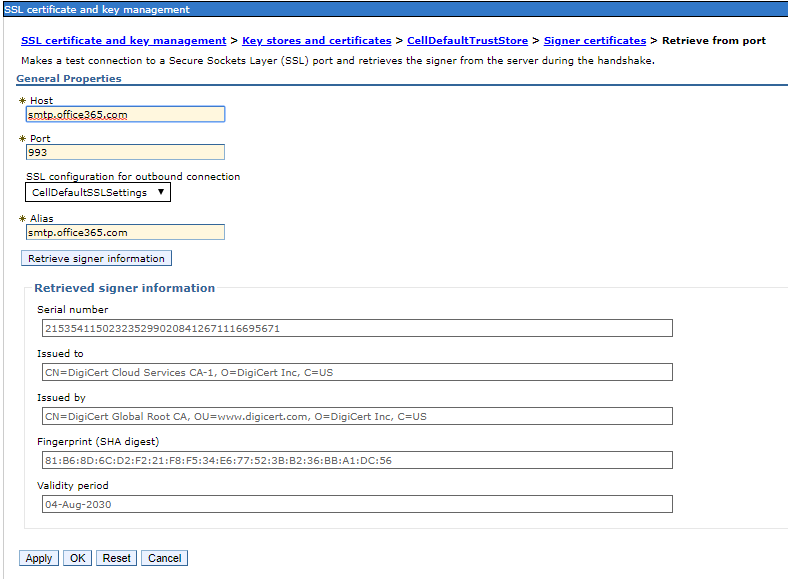
Do not approve a certificate based only on a successful network retrieval. Verify the subject, issuer, validity, fingerprint and chain through an independent trusted source. SMTP on port 587 negotiates TLS with STARTTLS; a simple raw-TLS retrieve function may not handle that negotiation. If WebSphere cannot retrieve the chain correctly, use an approved STARTTLS-aware tool and the normal truststore import procedure.
After an approved change, apply it, review the pending WebSphere configuration, synchronize it to the nodes and save it:


Restart the application servers that use the truststore, preferably one cluster member at a time.
Configure the legacy Maximo SMTP properties
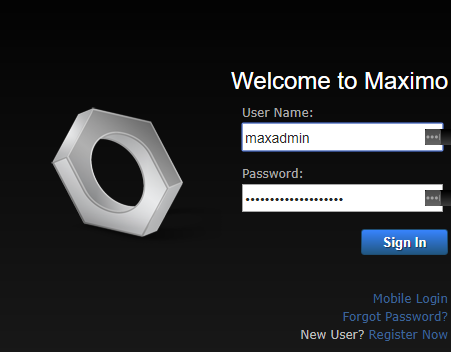
Sign in to Maximo and open System Properties:
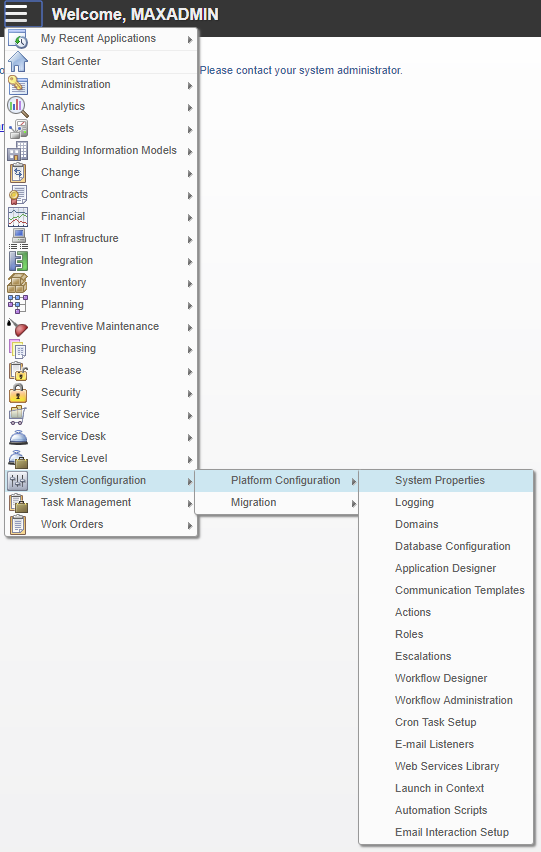
Filter for the SMTP properties:
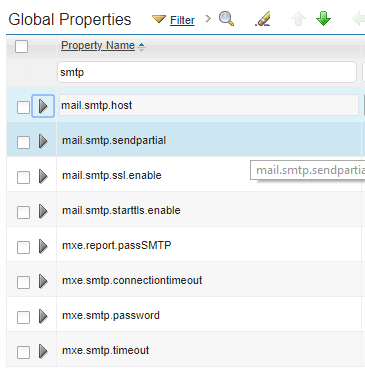
Set the mail host:
mail.smtp.host=smtp.office365.com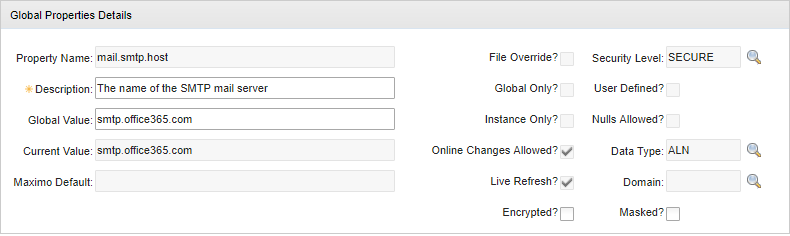
Enable STARTTLS:
mail.smtp.starttls.enable=true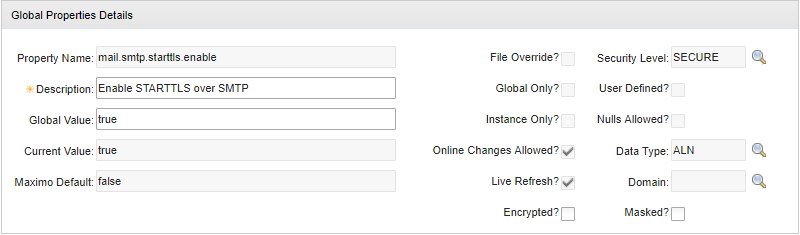
The historical username and password properties were:
mxe.smtp.user=maximo@example.com
mxe.smtp.password=<mailbox password>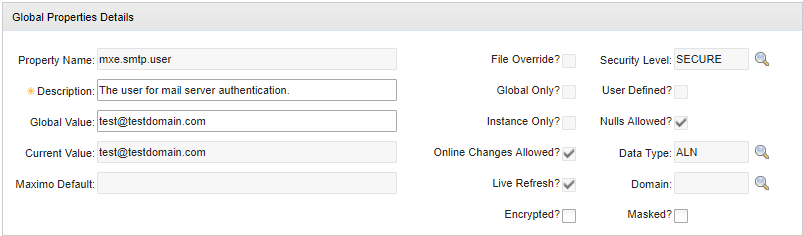
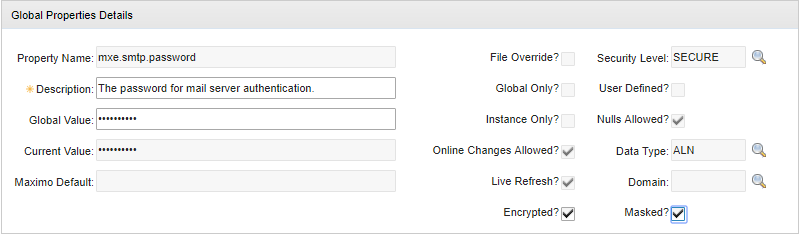
If a compatible SMTP server still requires a password, mark the property Encrypted and Masked, restrict its security level and ensure it never appears in screenshots, logs or migration packages. Those controls protect storage and display; they do not turn Basic authentication into OAuth.
Add the port property when it is absent:
mail.smtp.port=587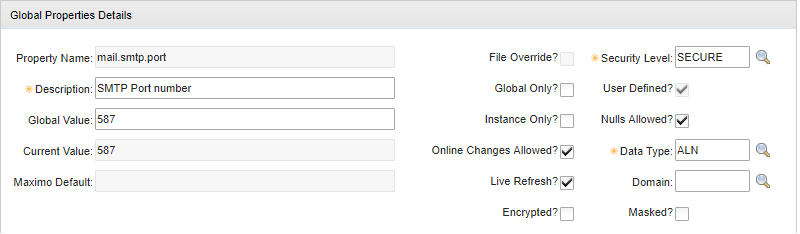
Save and live-refresh properties that permit it. Restart the relevant JVMs when a property or truststore change is not live-refreshable.
Test more than one email path
Send controlled messages from each Maximo cluster or workload that sends mail, including communications, workflows, escalations and scheduled reports. Verify the recipient, sender, TLS negotiation and message trace in the mail platform.
The authenticated account normally sends from its own address. If a report or communication changes the From address, Microsoft 365 requires the authenticated identity to have the appropriate Send As permission; otherwise authentication or submission can fail. Prefer a dedicated application identity with the minimum required permissions rather than a person's mailbox.
When troubleshooting, distinguish these failures:
- DNS, firewall or port failures before SMTP connects.
- TLS protocol or certificate-chain failures during STARTTLS.
- SMTP AUTH disabled for the tenant or mailbox.
- Rejection because the client only supports Basic authentication.
- Sender rejection because the identity lacks permission for the From address.
- Relay restrictions, recipient limits or anti-spam policy failures after authentication.
Use Microsoft 365 message tracing and the Maximo/WebSphere logs together. Do not weaken TLS, re-enable broad legacy authentication or grant unrestricted relay access merely to make a test message pass.