
A development mail server lets you inspect Maximo notifications without delivering them to real people. The example environment used hMailServer 5.6.7 on Windows Server 2016, a local test domain and one mailbox viewed through Thunderbird.
This is a legacy walkthrough. For a new environment, a purpose-built SMTP capture tool is usually smaller and safer because it accepts mail for inspection without acting as a general mail server. If you retain hMailServer, keep it isolated and patch the host.
Containment comes first
A domain catch-all does not receive every message regardless of its destination: a catch-all receives mail for unknown addresses inside its configured domain. It does not automatically capture a message addressed to a real external domain.
Before connecting Maximo:
- Block outbound SMTP from the test server at the network firewall.
- Allow inbound SMTP only from the development Maximo hosts.
- Do not publish MX records or expose SMTP, POP3, IMAP or administration ports to the internet.
- Require authentication and restrict hMailServer IP ranges; never create an open relay.
- Use an obviously fictional internal test domain and make every test person's email address use it.
- Do not copy production personal data or real recipient addresses into the environment.
Prove the block with a harmless external-address test before relying on it. Application configuration is not a sufficient boundary by itself.
Install the hMailServer release
The 2019 server required the Windows .NET Framework 3.5 feature:
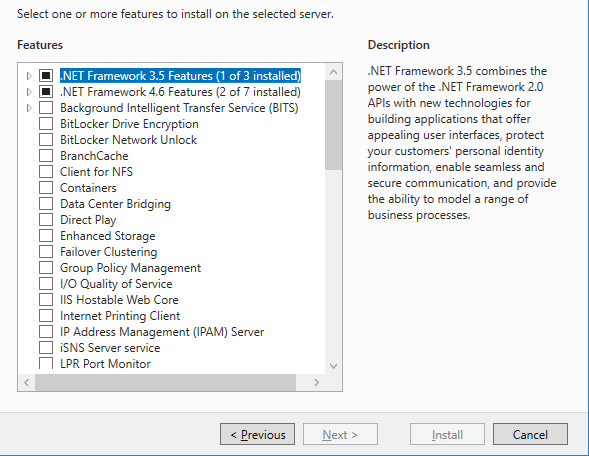
The following screens preserve the hMailServer 5.6.7 installation. Obtain installation media only from a trusted source, verify its integrity, and assess the release against the organization's current software policy.
-
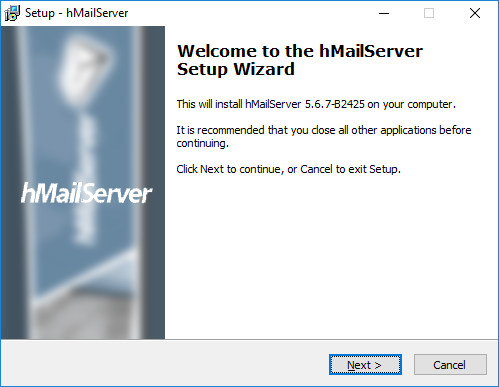
Launch the installer and review the setup information.
-
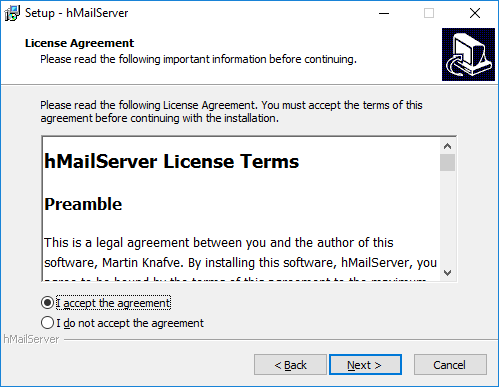
Read and accept the licence if it is compatible with your use.
-
Choose the installation directory.
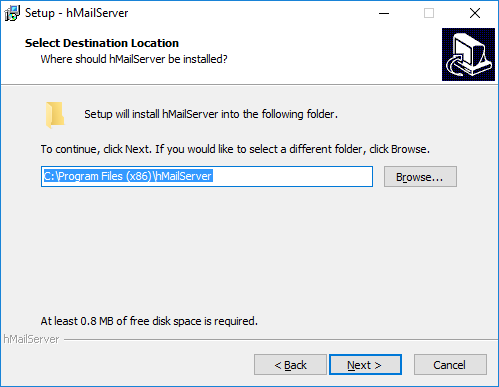
-
Install both the server and administrative tools.
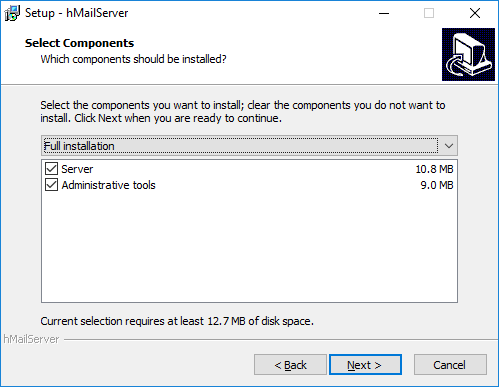
-
The small test environment used the built-in database. Use an externally managed database if your chosen release or operational policy requires one.
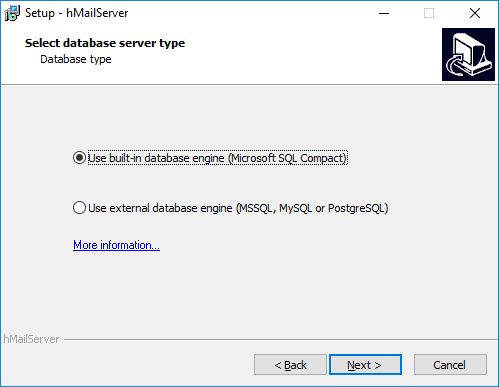
-
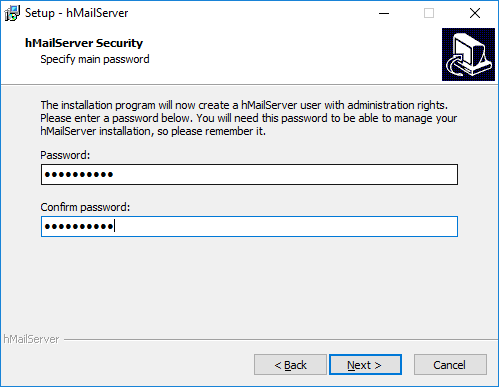
Choose the Start menu folder and set a unique administrator password stored in the team's password manager.
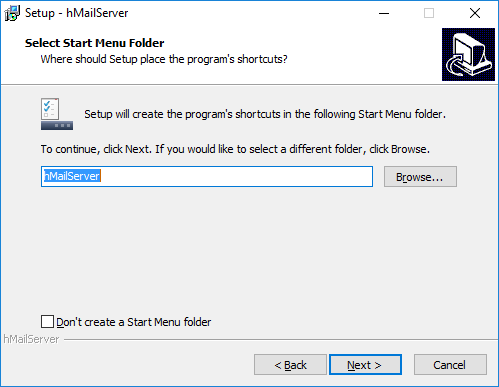
-
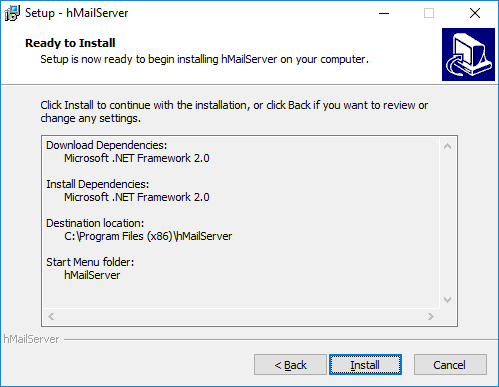
Review the selections and install.
Create the local test mailbox
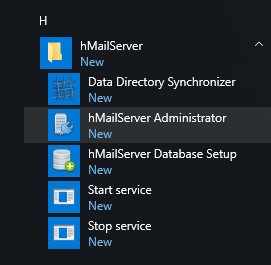
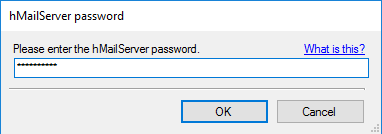
Open hMailServer Administrator and authenticate with the administrator password:
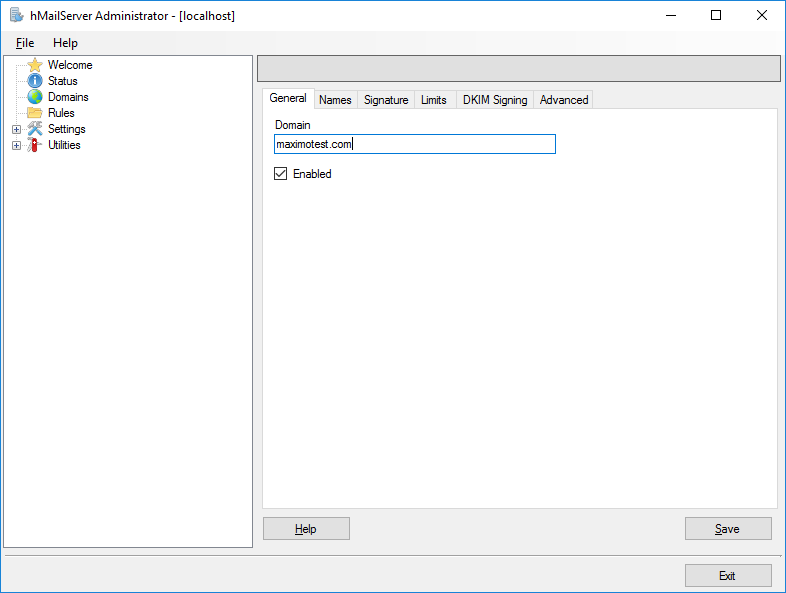
Add an internal test domain:
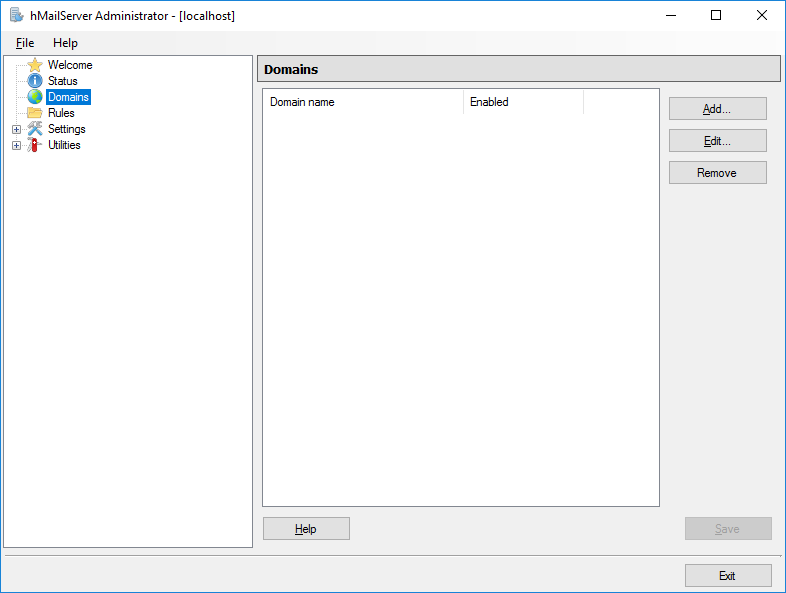
This example uses maximotest.com. Avoid a domain that could resolve publicly or become deliverable later; use a namespace reserved and controlled for internal testing instead.
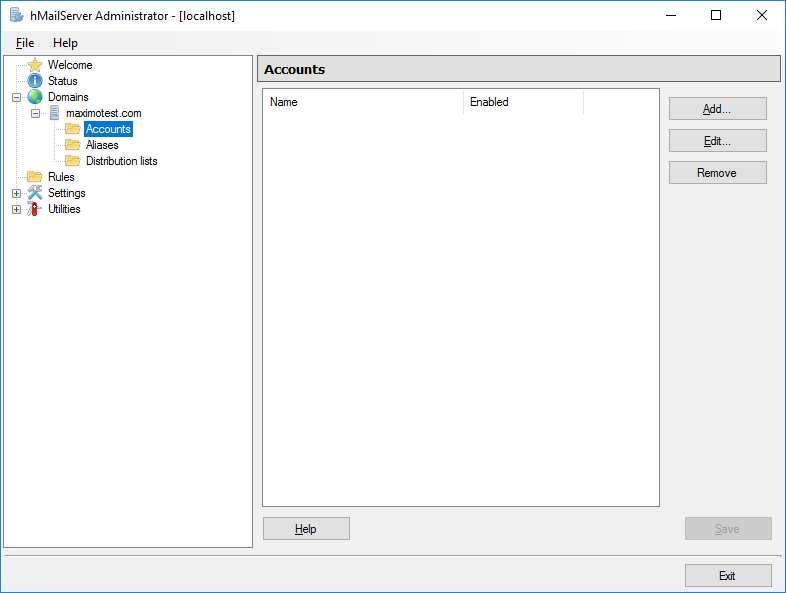
Under the domain, add a mailbox account with a unique password:
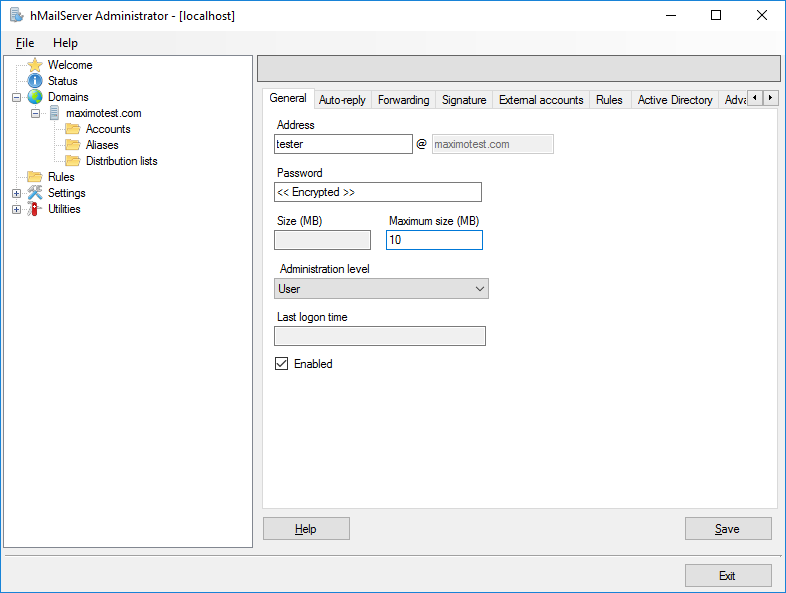
On the domain's Advanced tab, set that mailbox as the catch-all:
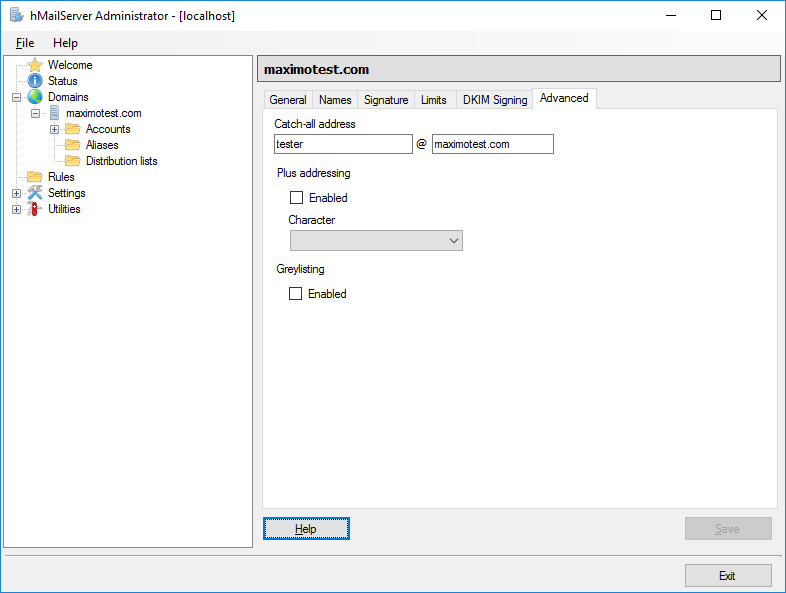
This captures unknown recipients at the local test domain. It does not replace the outbound firewall block.
Lock down the mail protocols
Before testing, review hMailServer's Settings → Advanced → IP Ranges and protocol bindings:
- Permit SMTP submission only from the known development Maximo addresses.
- Require authentication for the permitted Maximo range.
- Deny external-to-external delivery and all relay paths that are not required.
- Bind client protocols to an internal interface and allow access only from administrator workstations.
- Disable POP3 or IMAP if nobody needs a mail client.
- Enable logging long enough to verify behavior, then retain and protect logs according to policy.
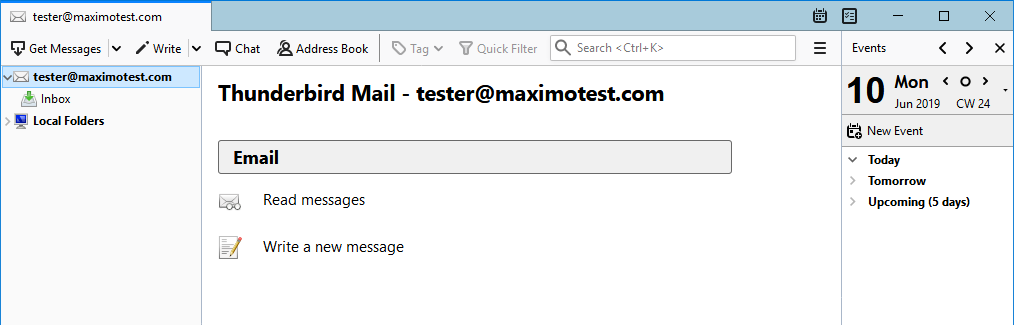
If a mail client is useful, configure it only on the isolated network. The example used Thunderbird to view the mailbox:
Point development Maximo at the server
In Maximo's System Properties application, set the SMTP host to the internal hMailServer address. The example configuration also supplied the test mailbox credentials through mxe.smtp.user and mxe.smtp.password:
mail.smtp.host=<internal test mail host>
mxe.smtp.user=tester@<internal test domain>
mxe.smtp.password=<test mailbox password>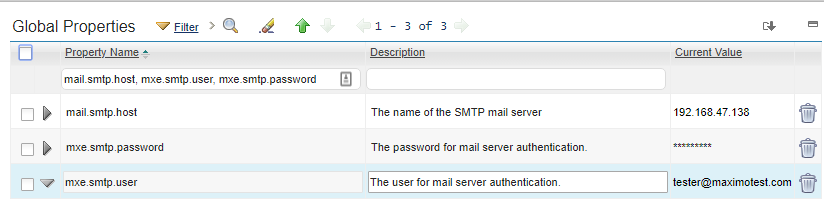
Mark the password property encrypted and masked. Add mail.smtp.port when the server is not using Maximo's default SMTP port, and configure TLS if the isolated server supports it. Save and live-refresh supported properties or restart the relevant JVMs.
Change all development person records and communication defaults to the internal test domain. A catch-all cannot protect you from a forgotten real address outside that domain.
Test delivery and containment
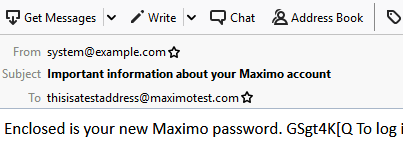
The test changed a test user's password to trigger an email:
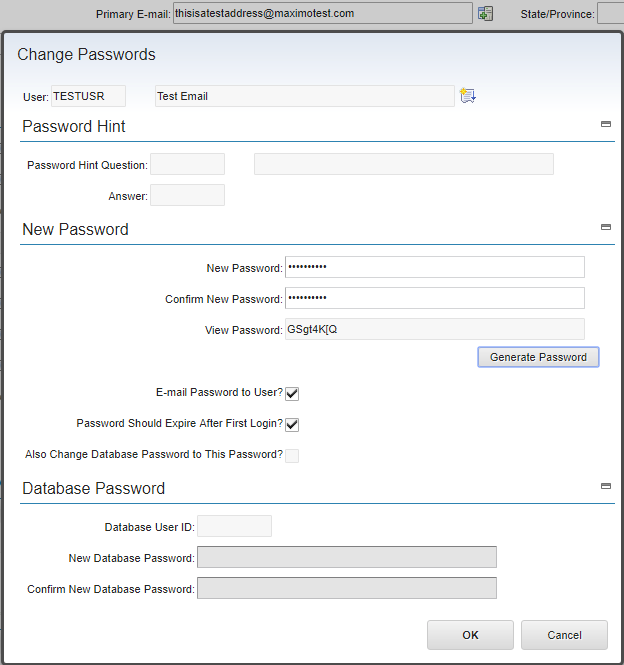
The resulting message appeared in the local mailbox:
Test each Maximo mail path that matters: direct communications, workflows, escalations, scheduled reports and password notifications. Use invented recipients within the test domain and confirm that the catch-all receives them.
Finally, address a message to a controlled external test address and verify that the network blocks delivery. Check the hMailServer queue and logs to make sure it was rejected rather than waiting for a later retry. Repeat that containment test after firewall, mail-server or environment refresh changes.