
A manually installed DB2 instance can work normally after db2start but remain offline after the Linux host reboots. The usual pieces to check are the instance's autostart registration and the DB2 Fault Monitor Coordinator, db2fmcd.
The fault monitor can start configured instances during boot and restart an instance that exits unexpectedly. Do not use it when a separate high-availability product controls DB2 startup and recovery; IBM says the fault monitor must be disabled in that arrangement.
This fix was tested with DB2 11.1 on Ubuntu 16.04 and 18.04. Paths and service integration vary by DB2 release, Linux distribution and installation layout, so inspect the installed environment before creating a unit.
Confirm that the instance is registered for autostart
First check the global registry record, replacing db2inst1 with the instance owner:
sudo db2greg -getinstrec instancename='db2inst1'The instance's startAtBoot value must be 1. If it is not, set it:
sudo db2greg -updinstrec instancename='db2inst1'!startatboot=1Then enable autostart through DB2:
sudo db2iauto -on db2inst1IBM documents db2iauto as the supported Linux and UNIX command for enabling instance autostart. If these commands have already configured the platform's startup integration correctly, do not add a second service that competes with it.
Check the fault monitor
Find the installed coordinator rather than copying a path from another server:
sudo find /opt /ibm -type f -name db2fmcd 2>/dev/nullCheck whether a service already exists and inspect its logs:
sudo systemctl status db2fmcd.service
sudo journalctl -u db2fmcd.service --boot
Also review the DB2 fault-monitor configuration for the instance. If the host uses Pacemaker, TSA, PowerHA or another cluster manager, stop here and follow that product's DB2 resource procedure.
Create a systemd unit when the installation did not provide one
The Ubuntu installations were missing a working startup service. Create /etc/systemd/system/db2fmcd.service with root ownership:
sudo vi /etc/systemd/system/db2fmcd.serviceThe example unit uses the following DB2 11.1 path:
[Unit]
Description=DB2 11.1 Fault Monitor Coordinator
After=local-fs.target

[Service]
Type=simple
ExecStart=/ibm/db2/V11.1/bin/db2fmcd
Restart=always
KillMode=process
KillSignal=SIGHUP

[Install]
WantedBy=multi-user.target
Change ExecStart to the exact db2fmcd path discovered on this host. Do not point it at a binary from a previous DB2 installation. The example service used default.target; multi-user.target makes the intended server boot stage explicit.
Set conservative ownership and permissions, validate the unit, reload systemd, and enable it immediately:
sudo chown root:root /etc/systemd/system/db2fmcd.service
sudo chmod 0644 /etc/systemd/system/db2fmcd.service
sudo systemd-analyze verify /etc/systemd/system/db2fmcd.service
sudo systemctl daemon-reload
sudo systemctl enable --now db2fmcd.service
Check the coordinator and the instance:
sudo systemctl status db2fmcd.service
sudo journalctl -u db2fmcd.service --since today
sudo -iu db2inst1 db2start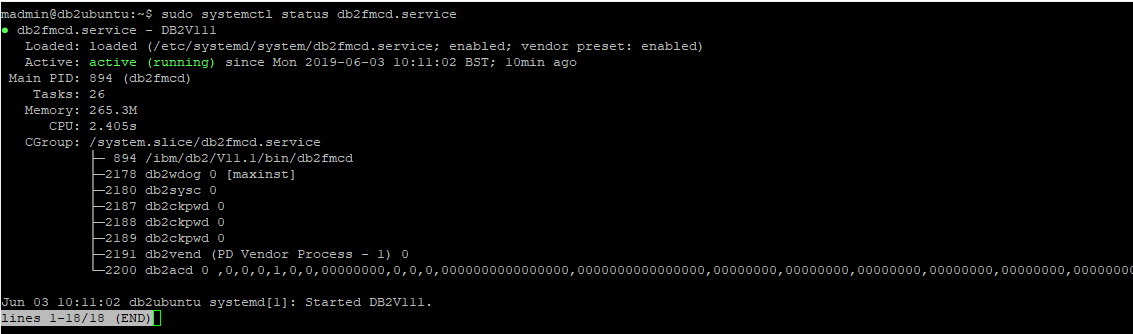
If DB2 starts manually but fails inside the systemd service, inspect the journal before changing the unit. Common differences include the executable path, SELinux policy and systemd resource limits such as TasksMax. Apply a workaround only when the logs demonstrate that specific cause.
Prove that boot recovery works
Enabling a unit is not the same as proving that it works. Arrange a controlled reboot during a maintenance window, then verify:
sudo systemctl is-enabled db2fmcd.service
sudo systemctl is-active db2fmcd.service
sudo -iu db2inst1 db2 get instance
sudo -iu db2inst1 db2 list active databases
Confirm that Maximo can reconnect, scheduled workloads recover, and no second cluster or service manager is repeatedly starting and stopping the instance. Record the custom unit in the server build documentation because a DB2 upgrade can change the binary path or startup integration.