
Traditional Maximo installations keep database and service credentials in maximo.properties. The legacy encryptproperties utility replaces eligible plaintext values with encrypted values before the properties file is packaged into the EAR.
Encryption reduces casual exposure, but it does not turn the file into a secret vault. Maximo must be able to decrypt the values, so filesystem permissions, administrator access, backups and deployment artifacts still need protection.
The procedure and advanced wrapper options below come from a Maximo 7.6.1 installation. Check the files and documentation supplied with your exact fix pack before changing the wrapper.
Run the supported encryption procedure
Before encryption, eligible values are readable in the file:
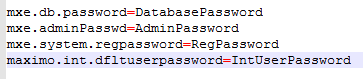
Afterward, the file contains encrypted data rather than the original passwords:

First take a protected backup and confirm that you can restore it. From a command prompt, change to:
<Maximo root>\tools\maximoRun the Windows wrapper:
encryptproperties.bat
IBM documents that the utility renames the unencrypted source with an _orig suffix, normally maximo.properties_orig. That file still contains working plaintext credentials. Move it to protected storage outside the Maximo application tree or remove it according to your recovery policy; do not leave it beside the encrypted file.
Verify that the new maximo.properties contains the encryption string, inspect the command output for warnings, rebuild and deploy the EAR through your normal process, then test the database connection and affected services. Keep the old EAR protected until rollback is no longer required because it may also contain the earlier properties file.
Include a password property that is skipped
The utility uses Maximo's property metadata to decide which values are encrypted. If a property in the file is not defined in the database, the tool can report:
[WARN] [] [] BMXAA6422W - The value for MAXPROP mxe.int.dfltuserpassword could not be cached. The name in the properties file is not defined in the MaxProp table.The Maximo environment produced this warning for mxe.int.dfltuserpassword. If your release still uses that property and it is absent from System Properties:
-
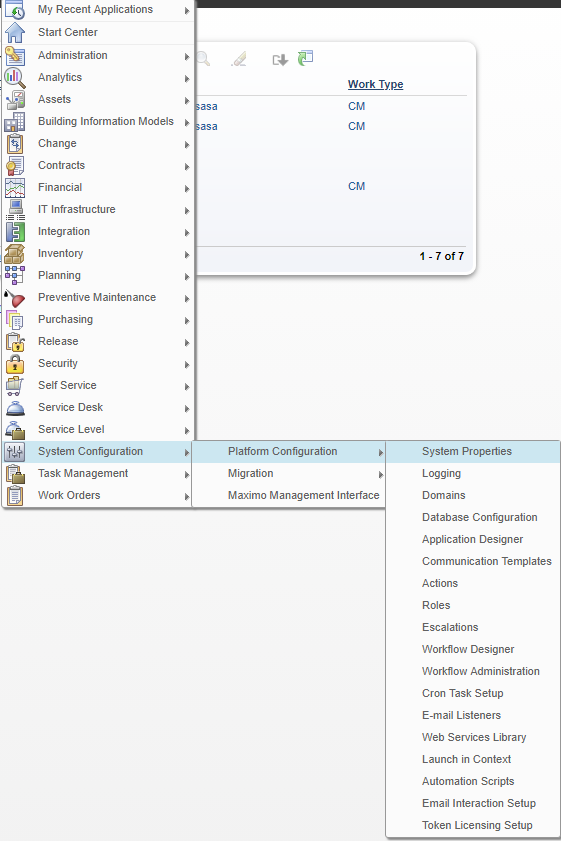
Open the System Properties application.
-
Add the property using the metadata required by your release. The example used:
- Property name:
mxe.int.dfltuserpassword - Description:
Integration user password - Encrypted: Yes
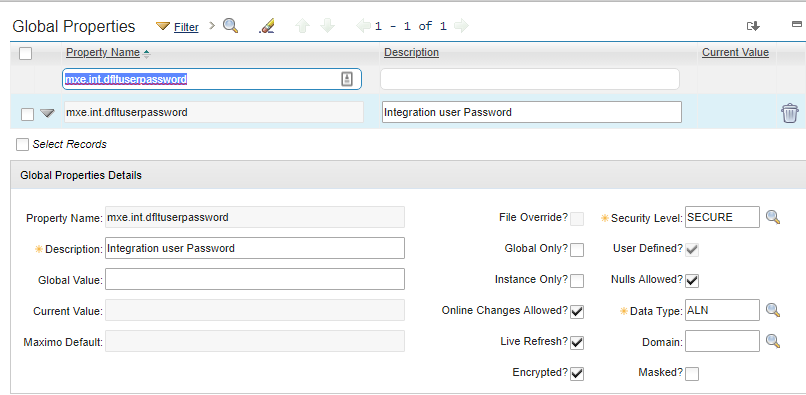
- Property name:
-
Save the row, apply the change according to the release's System Properties process, and run
encryptpropertiesagain.
Do not create a property solely because it appears in this example. First confirm that the property is valid and required in your Maximo version. Also check its security level and file-override behavior rather than copying only the encrypted flag.
Legacy Maximo 7.6.1 wrapper options
The Maximo 7.6.1 encryptproperties.xml exposed only -k, -e, -p and -u, although its Java utility accepted more options. Add declarations to the wrapper to pass those arguments through.
Editing an IBM-supplied tool is a local customization. Back up the original, record the change, validate the XML, restrict its permissions and expect an installation or fix pack to replace it. If your supplied wrapper already exposes the option you need, leave it alone.
The file is located at:
<Maximo root>\tools\maximo\encryptproperties.xmlUse this extended argument block:
<?xml version="1.0" encoding="UTF-8"?>
<script
  name="encryptproperties"
  shortDescription="Converted encryptproperties.bat"
  version="1.0"
  hasExtraArgs="true"
  extraArgName="XMLFILE"
>
  <description>Converted encryptproperties.bat file.</description>
  <args>
    <arg
      name="-k"
      hasValue="true"
      typeName="FILE"
      description="Maximo properties file home"
      isFile="true"
      value="${MAXIMO_HOME}/applications/maximo/properties"
    />
    <arg name="-e" hasValue="false" description="Encrypt properties" required="true" />
    <arg
      name="-p"
      hasValue="true"
      description="Password for database connection"
      required="false"
    />
    <arg
      name="-u"
      hasValue="true"
      description="Username for database connection"
      required="false"
    />
    <arg name="-h" hasValue="false" description="Show help information" required="false" />
    <arg
      name="-f"
      hasValue="true"
      typeName="FILE"
      description="Maximo properties file"
      isFile="true"
    />
    <arg
      name="-o"
      hasValue="true"
      typeName="FILE"
      description="Output log file"
      isFile="true"
    />
    <arg
      name="-d"
      hasValue="true"
      typeName="FILE"
      description="Output log directory"
      isFile="true"
      value="${MAXIMO_HOME}/applications/maximo/properties"
    />
    <arg name="-a" hasValue="true" description="Database alias" required="false" />
    <arg name="-z" hasValue="false" description="Back up original file" required="false" />
  </args>

  <message>Starting encryption of Maximo properties.</message>
  <call script="${MAXIMO_HOME}/commonenv" />
  <java
    class="psdi.util.EncryptProperties"
    args="${args}"
    vmargs="${FIPS_ARG1} ${FIPS_ARG2} "
  />
</script>
This is an example, not a replacement file for every release. Compare it line by line with the version installed in your environment.
Display help
The added -h declaration allows the wrapper's short help output:
encryptproperties.bat -h
The generic wrapper help lists the arguments declared in encryptproperties.xml:
encryptproperties.bat -?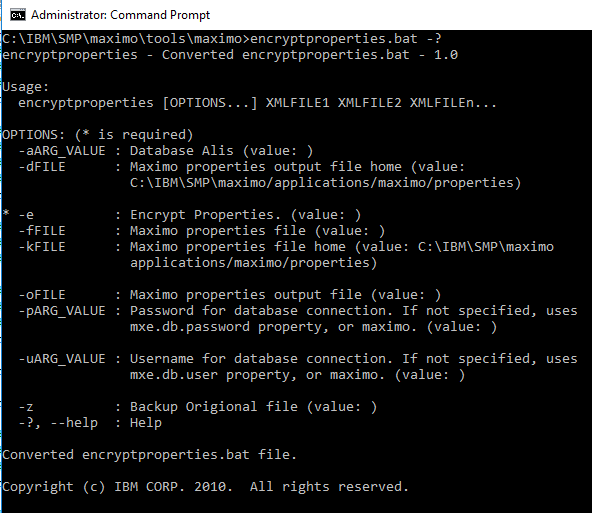
Select a properties file with -f
Clustered traditional deployments can use separate UI, integration, cron and reporting property files. Select one by filename:
encryptproperties.bat -f "maximo-ui.properties"
Process each file separately and verify its result. Do not copy and paste the contents of an already encrypted properties file to create another file; IBM's cluster instructions build each file from the protected unencrypted source and encrypt it.
Select the properties directory with -k
Use -k when the properties file is outside the default directory:
encryptproperties.bat -k "C:\TestDir"
Name and locate the output log
The utility normally creates an EncryptProperties<timestamp>.txt log. The -o option gives the log a recognizable filename:
encryptproperties.bat -f "maximo-ui.properties" -o "maximo-ui.log"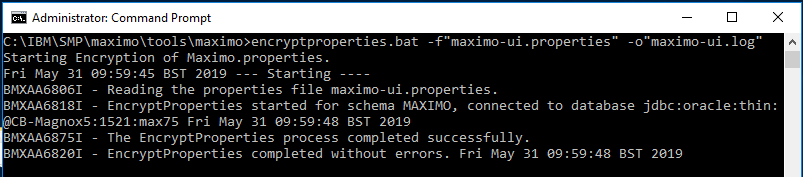

The -d option selects the output directory:
encryptproperties.bat -f "maximo-ui.properties" -o "maximo-ui.log" -d "C:\TestDir"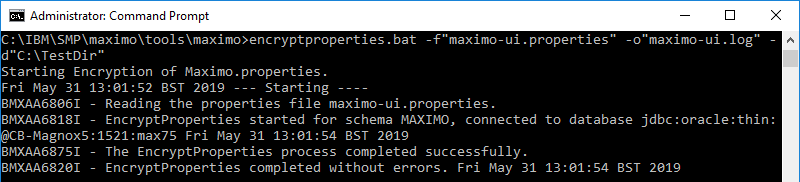

Logs can contain environment details. Store them with restricted permissions and inspect them before attaching them to a support case.
Back up the source with -z
The wrapper exposes -z as an explicit backup option:
encryptproperties.bat -z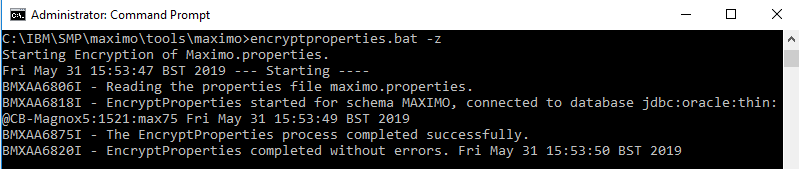
IBM's standard procedure already says the unencrypted file is retained as maximo.properties_orig. Whichever path creates it, treat that file as a live credential disclosure: protect it outside the application tree or securely remove it when it is no longer required.
Override the database connection
The legacy arguments can supply a different database user, password and alias:
| Argument | Purpose |
|---|---|
-u |
Database username |
-p |
Database password |
-a |
Database alias |
Avoid placing a real password directly on a shared command line. It may be captured in shell history, process listings, automation logs or monitoring tools. Prefer the normal protected properties and a controlled administrator session; if an override is unavoidable, follow the credential-handling controls for the operating system and rotate an exposed credential.