
If every WebSphere administrator credential is unavailable but you still have authorised operating-system access to the Deployment Manager host, you can temporarily disable administrative security and recover access.
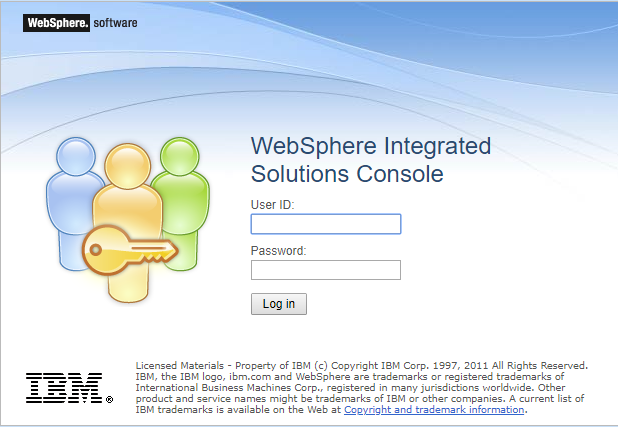
Before you begin: this procedure temporarily makes the administrative console available without authentication. Treat local access to the WebSphere configuration as privileged access, use a maintenance window, restrict network access to the console and do not start application servers while security is disabled. Back up the Deployment Manager profile and make sure you can restore it before changing anything.
This procedure applies to traditional WebSphere Application Server. It does not apply to WebSphere Liberty.
Identify the user repository
First establish where the administrator account is stored. The password recovery step depends on the configured repository:
- For WebSphere's built-in file repository, reset the user through Users and Groups > Manage Users.
- For LDAP or Active Directory, reset or restore the account in that directory.
- For a local operating-system registry, use the operating system's account tools.
- For another product-managed registry, follow that product's recovery procedure.
Do not use the Security Configuration Wizard to replace an existing federated-repository configuration. IBM describes that wizard as an initial setup tool for the built-in file repository; using it on an established LDAP or multi-repository realm can change more than the administrator password.
Stop and back up the Deployment Manager
Stop the Deployment Manager and the processes it manages. If the normal stop command requires the missing credentials, stop its operating-system service using an authorised administrator account.
From the Deployment Manager profile's bin directory, create a configuration backup. Replace the path with a protected location in your environment.
backupConfig.bat C:\WebSphereBackups\Dmgr01-before-security-recovery.zipOn Linux or Unix, use the corresponding script:
./backupConfig.sh /secure/backups/Dmgr01-before-security-recovery.zipKeep the Deployment Manager stopped while applying the offline configuration change.
Disable administrative security offline
Open a command prompt as the operating-system account that owns or administers the Deployment Manager profile, then change to <DMGR_PROFILE_ROOT>/bin.
On Windows, start wsadmin in disconnected Jython mode:
wsadmin.bat -conntype NONE -lang jythonOn Linux or Unix:
./wsadmin.sh -conntype NONE -lang jythonAt the wsadmin> prompt, disable security, save the master configuration and exit:
securityoff()
AdminConfig.save()
quit
IBM documents this offline securityoff recovery procedure. It changes the security setting in the profile configuration without manually editing security.xml.
Start only the Deployment Manager. The Integrated Solutions Console should open without requesting a password.
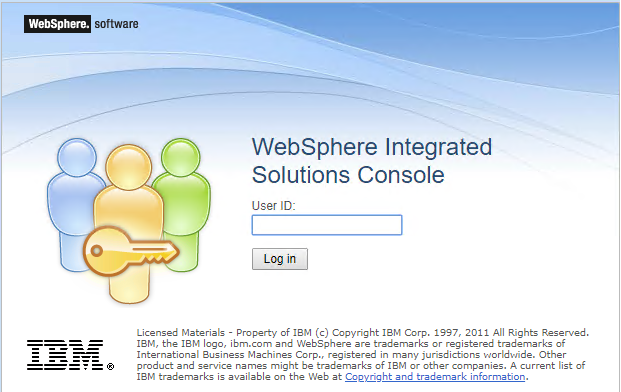
Keep the console reachable only from the machine or restricted administration network being used for recovery.
Recover the administrator account
For an administrator stored in WebSphere's built-in file repository:
- Open Users and Groups > Manage Users.
- Find and open the existing administrator user.
- Enter and confirm a strong new password.
- Select OK, then save the master configuration.
IBM's federated-repository user guidance confirms that the Manage Users page can update a file-repository user's password.
If the account comes from LDAP, Active Directory or the operating system, change its password there instead. Confirm that the account still exists, can authenticate and has a WebSphere administrative role. Do not create a second account with the same name in the built-in repository; duplicate identities across repositories can make authentication ambiguous.
Review scripts, services and tools that store the old administrator password. This can include soap.client.props, deployment automation, monitoring and backup tooling. Update each credential securely and use WebSphere's password encoder where a properties file requires it.
Re-enable security immediately
In the console, open Security > Global security, select Enable administrative security, apply the change and save the master configuration. Preserve the existing user-repository selection and configuration.
Stop and restart the Deployment Manager. Before starting the node agents or application servers, confirm that:
- the console once again requests credentials;
- the recovered administrator can sign in with the new password;
- an incorrect password is rejected; and
- the configured realm and primary administrative user are unchanged.
Start the node agents, synchronise the nodes and then start the application servers in the environment's normal order. Verify that the nodes remain connected, Maximo starts and administrative automation still works.
If the Deployment Manager does not start or the realm configuration is damaged, stop it and restore the configuration backup rather than making repeated changes.
Last resort: edit security.xml manually
If offline wsadmin cannot run, you can make the original configuration change directly. IBM documents this as an alternative method for manually disabling WebSphere security, but warns that an XML syntax error can corrupt the profile and prevent it from starting.
Stop the Deployment Manager before editing its configuration. Confirm that the full profile backup exists, then make a separate copy of this file:
<DMGR_PROFILE_ROOT>/config/cells/<CELL_NAME>/security.xmlOpen the file in an editor that preserves its XML encoding and line endings. On the root <security:Security> element, find the administrative security attribute:
<security:Security
  ...
  enabled="true"
  ...>
Change only that attribute to false:
<security:Security
  ...
  enabled="false"
  ...>
The snippets are abbreviated examples; do not paste them over the complete element. Do not change appEnabled, repository definitions or any other enabled attribute elsewhere in the file. Compare the edited file with the backup and confirm that the one value is the only difference.
Start only the Deployment Manager, recover the administrator account using the repository-specific steps above, and keep console access restricted. Re-enable administrative security through Security > Global security and save the configuration.
If the console cannot save that change, stop the Deployment Manager again, change the same root attribute from enabled="false" back to enabled="true", and preserve the file's original ownership and permissions. Restart the Deployment Manager and complete all of the authentication, node-synchronisation and application checks above.