
A Maximo cluster is much easier to operate when every JVM has a clear, unique name. Set mxe.name on each WebSphere application server and Maximo can identify the member that is handling a session or using a server-specific property value.
IBM also uses mxe.name when the application server binds its server object to the RMI registry. Do not reuse a name across active JVMs.
Where the name appears
In Maximo's Users application, open Manage Sessions to see the server associated with each active session. In this example, Mike Wilson's session is on Maximo-UI-01:
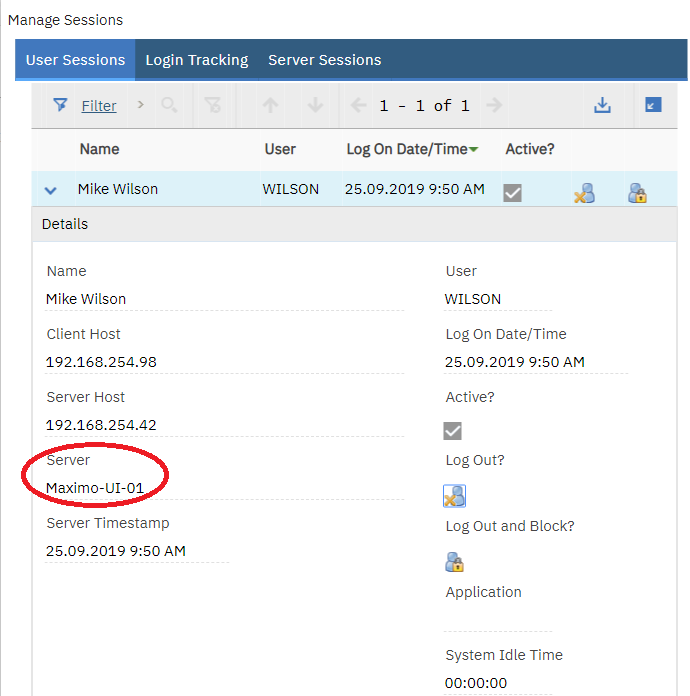
That makes it easier to correlate a user's report with the correct JVM log. The name can also identify a server-specific value in the System Properties application. This example gives Maximo-UI-01 its own value for mxe.crontask.donotrun:
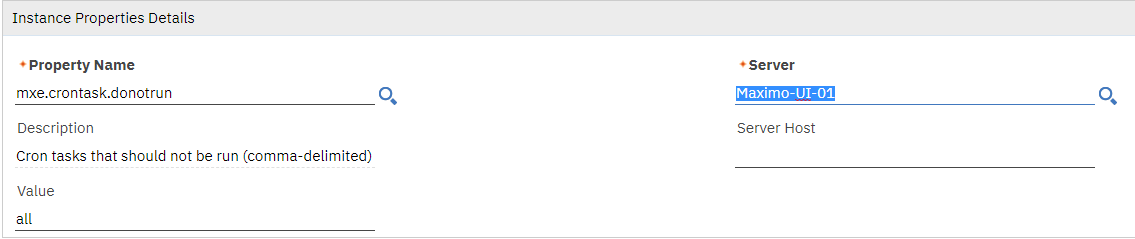
Treat that property as an illustration of server targeting. Design cron-task separation deliberately for the whole cluster and verify it after every deployment; a single example value is not a complete cron configuration.
Add mxe.name to a WebSphere JVM
Make the change on one cluster member at a time so every JVM receives its own name.
-
Sign in to the WebSphere Integrated Solutions Console with an account allowed to change server configuration.

-
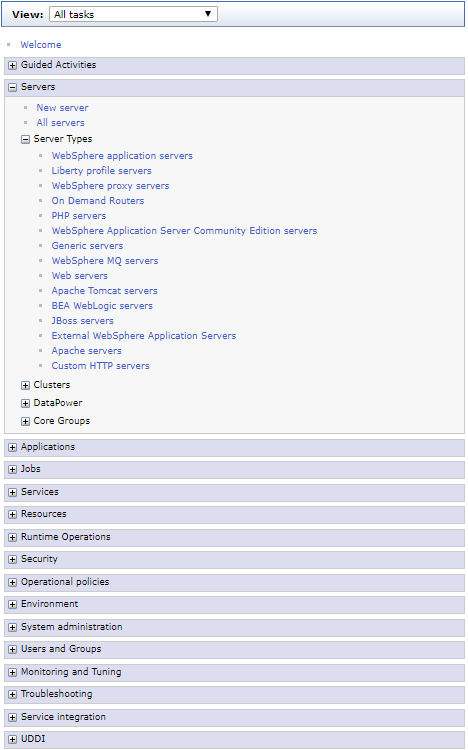
Open Servers → Server Types → WebSphere application servers.
-
Select the application server to name. The example uses
maxApp01.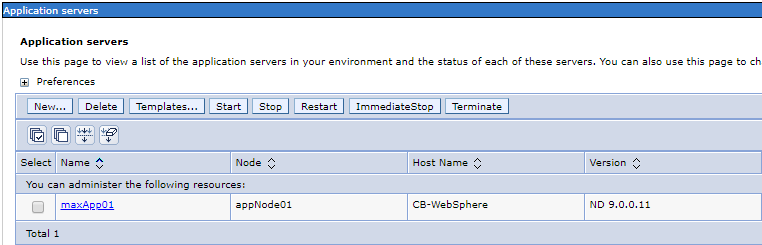
-
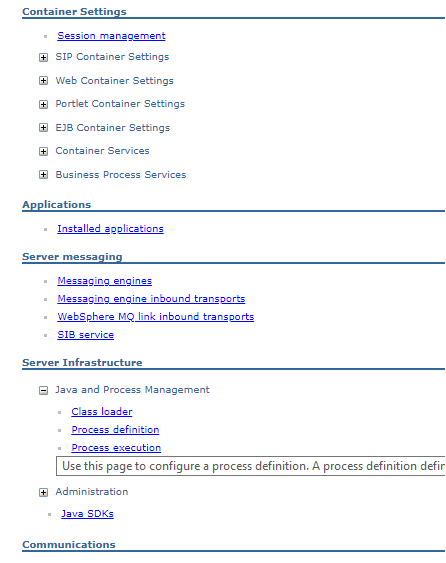
Under Server Infrastructure → Java and Process Management, open Process definition.
-
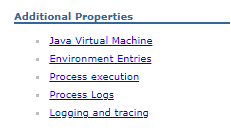
Under Additional Properties, open Java Virtual Machine.
-
Add the following value to Generic JVM arguments, preserving every argument already present:
-Dmxe.name=Maximo-UI-01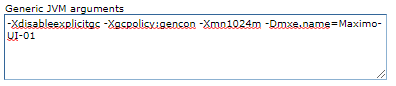
-
Save the change to the master configuration and synchronize the node if synchronization is not automatic.
-
Restart that application server. A JVM argument is read at startup, so a Maximo live refresh cannot apply this change.
Repeat the process for each member with a unique, useful name such as Maximo-UI-02, Maximo-Cron-01 or Maximo-Integration-01. Use a naming scheme that describes the workload without tying the name to a host that may later change.
Verify the cluster
After each restart:
- Confirm the server starts without RMI binding or duplicate-name errors.
- Check the Maximo logs for the expected server name.
- Open Manage Sessions and confirm new sessions report the correct member.
- Review server-specific system-property rows and make sure their server names match exactly.
- Send test traffic through the load balancer so every intended member receives a session.
Keep the JVM names in the environment's build and operations documentation. If servers are rebuilt automatically, put the argument in that automation so the names do not disappear during the next deployment.