
Before you begin: this procedure changes the DB2 Text Search configuration and enables text search at database level. Stop the affected Text Search services, back up each
configuration.xmlfile and test the change outside production. The instance names, installation paths, credentials, databases, table space and ports below are examples; substitute values from your environment.
Development and UAT databases often share a Windows server while remaining isolated in separate DB2 instances. When both instances use DB2 Text Search, each Text Search service must listen on a unique port. If both services retain the default port, only one can start.
This example uses separate DB2 installations so development can be patched independently of UAT:
| Environment | DB2 installation | Instance | Database | DB2 port | Text Search port |
|---|---|---|---|---|---|
| Development | DB2DEV |
DEVINST |
MAXDEV |
50005 |
55005 |
| UAT | DB2UAT |
UATINST |
MAXUAT |
50010 |
55010 |
The DB2 and Maximo versions used to test this procedure are unknown. Check the administration commands and configuration method against the documentation for your installed DB2 release.
Create the instances with separate ports
The development instance was created with this Windows command:
db2icrt -s ese -u db2admin,db2admin -r 50005,50005 -j "TEXT_SEARCH,55005" devinstThe UAT instance used different DB2 and Text Search ports:
db2icrt -s ese -u db2admin,db2admin -r 50010,50010 -j "TEXT_SEARCH,55010" uatinstReplace the example user name and password before running either command. The -j "TEXT_SEARCH,<port>" option configures DB2 Text Search with the supplied port. IBM documents the accepted forms in the db2icrt command reference.
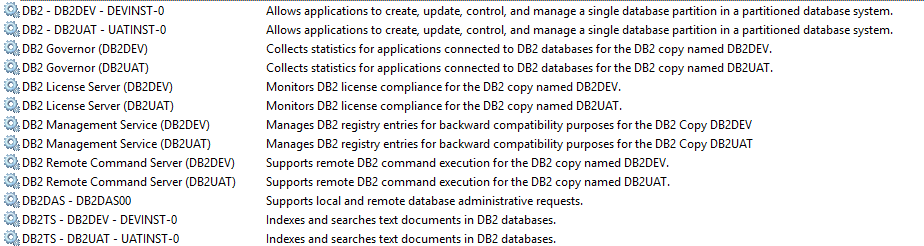
The two installations create separate DB2 and DB2 Text Search Windows services:
Identify the port collision
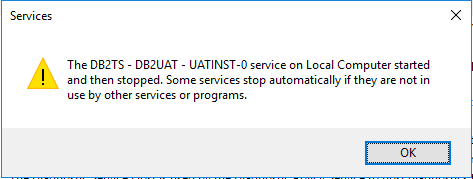
If both Text Search services try to use the default port, the second service starts and then immediately stops. Windows displays this message:
The DB2TS - <installation name> - <instance name> -0 service on Local Computer started and then stopped. Some services stop automatically if they are not in use by other services or programs.
In this example, the UAT Text Search log is under <installation-root>\IBM\DB2\DB2UAT\UATINST\db2tss\log\default0. It records that port 55000 is already in use:
<record>
  <date>2018-07-16T10:20:51</date>
  <millis>1531732851323</millis>
  <sequence>11</sequence>
  <logger>com.ibm.es.nuvo.Startup</logger>
  <level>SEVERE</level>
  <class>com.ibm.es.nuvo.Startup</class>
  <method>main</method>
  <thread>1</thread>
  <message>IQQG0044E The server is shutting down.
Causes of the problem:
   IQQD0034E The port 55000 that was specified is already in use.
   IQQG0020E java.net.BindException: Address already in use: JVM_Bind
      java.net.DualStackPlainSocketImpl.bind0(Native Method)
      java.net.DualStackPlainSocketImpl.socketBind(DualStackPlainSocketImpl.java:117)
      java.net.AbstractPlainSocketImpl.bind(AbstractPlainSocketImpl.java:417)
      java.net.PlainSocketImpl.bind(PlainSocketImpl.java:201)
      java.net.ServerSocket.bind(ServerSocket.java:444)
      java.net.ServerSocket.<init>(ServerSocket.java:258)
      java.net.ServerSocket.<init>(ServerSocket.java:202)
      com.ibm.es.nuvo.inyo.common.InyoServer.run(InyoServer.java:181)</message>
</record>
The IQQD0034E entry identifies the conflict directly. Both services are reading 55000 from their Text Search configuration, even though the DB2 instances were assigned different Text Search ports.
Assign the development Text Search port
Stop the development Text Search service and open:
<installation-root>\IBM\DB2\DB2DEV\DEVINST\db2tss\config\configuration.xmlChange the server port from 55000 to 55005. Leave the environment-specific paths and all other settings unchanged:
<config>
  <query />
  <server>
    <port>55005</port>
    <installPath>E:\IBM\SQLLIB\DEV\db2tss</installPath>
    <configPath>E:\IBM\SQLLIB\DEV\IBM\DB2\DB2DEV\DEVINST\db2tss\config</configPath>
    <tempDirectory>C:\Users\INSTAL~1\AppData\Local\Temp\2</tempDirectory>
    <stellentEnabled>false</stellentEnabled>
  </server>
  <index>
    <enableXMLNameSpaceSearch>false</enableXMLNameSpaceSearch>
    <enableXMLDateSearch>false</enableXMLDateSearch>
  </index>
</config>
Assign the UAT Text Search port
Stop the UAT Text Search service and open:
<installation-root>\IBM\DB2\DB2UAT\UATINST\db2tss\config\configuration.xmlChange the server port from 55000 to 55010, again preserving the other values from the existing file:
<config>
  <query />
  <server>
    <port>55010</port>
    <installPath>E:\IBM\SQLLIB\UAT\db2tss</installPath>
    <configPath>E:\IBM\SQLLIB\UAT\IBM\DB2\DB2UAT\UATINST\db2tss\config</configPath>
    <tempDirectory>C:\Users\INSTAL~1\AppData\Local\Temp\2</tempDirectory>
    <stellentEnabled>false</stellentEnabled>
  </server>
  <index>
    <enableXMLNameSpaceSearch>false</enableXMLNameSpaceSearch>
    <enableXMLDateSearch>false</enableXMLDateSearch>
  </index>
</config>
This direct XML edit reflects the original Windows procedure. Current DB2 documentation also provides a DB2 Text Search configuration tool for changing system settings. Use the method supported by your installed DB2 version.
Start both Text Search services and confirm that each remains running on its assigned port. Set the Windows service startup type according to your operational policy; the original services were created with Manual startup.
Enable Text Search for each database
Run the following command from the DB2 Command Window for the development DB2 copy:
db2ts ENABLE DATABASE FOR TEXT ADMINISTRATION TABLES IN MAXDATA CONNECT TO MAXDEVRun the equivalent command from the UAT DB2 Command Window:
db2ts ENABLE DATABASE FOR TEXT ADMINISTRATION TABLES IN MAXDATA CONNECT TO MAXUATThe command:
- invokes the
db2tsadministration tool; - enables DB2 Text Search for the named database;
- creates the Text Search administration objects in the existing
MAXDATAtable space; and - connects to the local database named after
CONNECT TO.
The user running it requires the SYSTS_ADM role and DBADM authority. IBM recommends placing the administration table space in the IBMCATGROUP database partition group. Review the requirements in the ENABLE DATABASE FOR TEXT command reference before selecting a table space.
After each command completes, verify the connection details in SYSIBMTS.TSSERVERS, confirm that both Windows services remain running and test Text Search against each database.